Powered by Blogger.
RSS
Showing posts with label Ransomware. Show all posts

How To Get Rid of the "FBI Your computer has been locked" Virus

"FBI your computer has been locked" virus locks your computer and then has the nerve to ask you to pay for it to be unlocked. Surely no one in their right mind would pay for that, but what if the computer hackers trick you into thinking that not only is it your fault that your computer has been frozen but that you will be in trouble with your local – or even national – law enforcement agency thanks to ‘your’ suspicious online activity.

You see, the way these cyber criminals work is by preying on your vulnerability. Imagine the scenario; you’re at home, or possibly even worse in the office surrounded by your colleagues, when suddenly your computer freezes and on your screen appears a message purportedly from the FBI or other police or governmental agency, telling you that you are in serious trouble for violating the law and accessing, downloading or storing illegal content such as X rated pornography of a very distasteful nature or you’ve been visiting terrorist websites. This is police themed ransomware – also known as the ‘Police Trojan’ – a program that has infiltrated your computer’s operating system to display a rogue message claiming that it is from a law enforcement agency.


You will most likely be told that your IP address has been detected engaging in illegal activity and you will be asked to pay a fine, usually $300, using a prepaid card such as MoneyPak, Ukash or PaySafeCard. Malware creators prefer using these methods of payment (rather than PayPal for example) as transactions made via them are difficult to trace and cannot be reversed.

FBI your computer has been locked virus originated back in 2011 and initially targeted PC users in Western Europe, including the UK, France, Spain, Italy, Austria and Belgium, however these days its international boundaries know no limits and the USA and Canada have both seen a massive increase in crimes of this nature. Indeed cyber criminals can make hundreds of thousands of dollars each month with these scams.


Experts investigating cyber-crime have now also found that in addition to more countries being added to the list but that they now target people very specifically in an attempt to convince more people that their fake ‘police’ messages are real. One way of doing this is tailoring the payment methods to the country – for example the UKash card is not known in the States therefore a rogue police notice targeting an inhabitant of the US, for example the one that purports to be from the Computer Crime and Intellectual Property Section of the U.S. Department of Justice will only ask for payment of the fine via the PaySafeCard.

In the United States the victim will normally be asked to pay a not inconsiderable $300 fine via the MoneyPak or PaySafeCard and just to hammer the message home and make payment even easier the thoughtful hackers will include the logos of supermarkets and stores where you can purchase vouchers.


If you’re unlucky enough to be a victim of police themed "FBI your computer has been locked" virus you may well find yourself tempted to click on the ‘pay now’ button. After all, having your PC frozen and a message from the FBI telling you that you are a known visitor of hardcore and illegal adult content sites or a threat to national security is enough to send anyone into a panic. Even if you do suspect that the message may be a computer virus and the work of a hacker, you might be too worried or embarrassed about taking your computer to a store to get it checked out…just in case you did click on something pornographic, either by choice or by accident.

The best thing to do is to follow the removal instructions below to unlock your computer and get rid of the "FBI your computer has been locked" virus. Whatever you do don’t be tempted to pay the fine – as seen, this can be a lot of money and besides, there’s no guarantee that your computer will be returned to normal as many hackers simply take the money and leave you stranded; out of pocket and still with a locked computer.

And of course, as with all malware, having a first rate and up to date antivirus program installed on your computer is the first major step in protecting yourself against online crime. If you have any questions, please leave a comment below. Good luck and be safe online!

Written by Michael Kaur, http://deletemalware.blogspot.com


Method 1: System Restore in Safe Mode with Command Prompt:

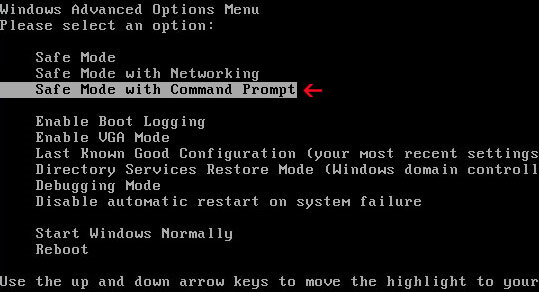
1. Unplug your network cable and manually turn your computer off. Reboot your computer is "Safe Mode with Command Prompt". As the computer is booting tap the "F8 key" continuously which should bring up the "Windows Advanced Options Menu" as shown below. Use your arrow keys to move to "Safe Mode with Command Prompt" and press Enter key.


2. Make sure you log in to an account with administrative privileges (login as admin).

3. Once the Command Prompt appears you have few seconds to type in explorer and hit Enter. If you fail to do it within 2-3 seconds, the FBI virus will take over and will not let you type anymore.

4. If you managed to bring up Windows Explorer you can now browse into:
  • Win XP: C:\windows\system32\restore\rstrui.exe and press Enter
  • Win Vista/Seven: C:\windows\system32\rstrui.exe and press Enter
5. Follow the steps to restore your computer into an earlier day.

6. Download recommended anti-malware software (direct download) and run a full system scan to remove the FBI virus.


Method 2: System Restore in Safe Mode:

1. Power off and restart your computer. As the computer is booting tap the "F8 key" continuously which should bring up the "Windows Advanced Options Menu" as shown below. Use your arrow keys to move to "Safe Mode" and press Enter key.


NOTE: Login as the same user you were previously logged in with in the normal Windows mode.

2. Once in there, go to Start menu and search for "system restore". Or you can browse into the Windows Restore folder and run System Restore utility from there:
  • Win XP: C:\windows\system32\restore\rstrui.exe double-click or press Enter
  • Win Vista/7/8: C:\windows\system32\rstrui.exe double-click or press Enter
3. Select Restore to an earlier time or Restore system files... and continue until you get into the System Restore utility.

4. Select a restore point from well before the FBI virus appeared, two weeks should be enough.

5. Restore it. Please note, it can take a long time, so be patient.

6. Once restored, restart your computer and hopefully this time you will be able to login (Start Windows normally).

7. At this point, download recommended anti-malware software (direct download) and run a full system scan to remove the FBI virus.


Method 3: Using MSConfig in Safe Mode:

1. Power off and restart your computer. As the computer is booting tap the "F8 key" continuously which should bring up the "Windows Advanced Options Menu" as shown below. Use your arrow keys to move to "Safe Mode" and press Enter key.


NOTE: Login as the same user you were previously logged in with in the normal Windows mode.

2. Once in there, go to Start menu and search for "msconfig". Launch the application. If you're using Windows XP, go to Start then select Run.... Type in "msconfig" and click OK.

3. Select Startup tab. Expand Command column and look for a startup entry that launches randomly named file from %AppData% or %Temp% folders using rundll32.exe. See example below:

C:\Windows\System32\rundll32.exe C:\Users\username\appdata\local\temp\regepqzf.dll,H1N1

4. Disable the malicious entry and click OK to save changes.

5. Restart your computer. This time Start Windows normally. Hopefully, you won't be prompted with a fake FBI screen.

6. Finally, download recommended anti-malware software (direct download) and run a full system scan to remove the FBI virus.


Method 4: Manual removal, Safe Mode (requires registry editing) :

1. Unplug your network cable and manually turn your computer off. Reboot your computer in "Safe Mode". As the computer is booting tap the "F8 key" continuously which should bring up the "Windows Advanced Options Menu" as shown below. Use your arrow keys to move to "Safe Mode" and press Enter key.


NOTE: Login as the same user you were previously logged in with in the normal Windows mode.

2. When Windows loads, open up Windows Registry Editor.

To do so, please go to Start, type "registry" in the search box, right click the Registry Editor and choose Run as Administrator. If you are using Windows XP/2000, go to StartRun... Type "regedit" and hit enter.

3. In the Registry Editor, click the [+] button to expand the selection. Expand:

HKEY_CURRENT_USER\Software\Microsoft\Windows\CurrentVersion\Run


Look on the list to the right for an randomly named item. Write down the file location. Then right click the randomly named item and select Delete. Please note that in your case the file name might be different. Close Registry Editor.

In our case the malicious file (pg_0rt_0p.exe) was located in Application Data folder. So, we went there and simply deleted the file. We're running Windows XP.

File location: C:\Documents and Settings\Michael\Application Data\


If you are using Windows Vista or Windows Seven, the file will be located in %AppData% folder.

File location: C:\Users\Michael\AppData\Romaming\

Finally, go into Windows Temp folder %Temp% and click Date Modified so the newest files are on top. You should see an exe file, possibly with the name  pg_0rt_0p.exe (in our case it was exactly the same), but it may be different in your case. Delete the malicious file.

One more thing, check your Programs Startup list for the following entry:

[UserPATH]\Programs\Startup\ctfmon.lnk - C:\Windows\system32\rundll32.exe pointing to [UserPATH] \Temp\wpbt0.dll,FQ10 (or FQ11)

In our case it was ctfmon.lnk pointing to malicious file which then loads the fake ransom warning. Please note that in your case the file name might be different, not necessarily ctfmon.lnk. Simply disable or remove (if possible) such entry and restart your computer.

4. Restart your computer into "Normal Mode" and scan the system with legitimate anti-malware software.

5. Download recommended anti-malware software (direct download) and run a full system scan to remove the FBI virus.

FBI MoneyPak Ransomware video:


To learn more about ransomware, please read Remove Trojan.Ransomware (Uninstall Guide).

Tell your friends:

  • Digg
  • Del.icio.us
  • StumbleUpon
  • Reddit
  • RSS

Remove The United States Courts Virus (Uninstall Guide)

One of the newest scams around at the moment and something we all need to be aware of is the United States Courts virus (your computer has been locked) which can not only have a financial impact upon you but can have a devastating personal effect too. As with most malicious software – or malware for short – ransomware has several different strings to its bow so to speak and one of the most cunning is something known as police themed ransomware. Whether you think this sounds official and law abiding or decidedly sinister (you’d be right about the latter) read on as we explain what the United States Courts ransomware is, and how it can affect you personally, your bank account and your computer.

Whilst being physically kidnapped is probably not a major concern for most people reading this (unless you’re the child of a high profile celebrity, in which case, ‘hi’!) most of us probably don’t realize that our computers – and our personal files and documents - can be hijacked or kidnapped too.


We’re all aware of computer viruses and, yes, they can be very problematic but there’s now an even more worrying trend in the world of computer crime to be aware of and that’s ransomware – or, as it can also be called, scareware, cryptoviruses, cryptotrojans and cryptoworms.

So what is ransomware, and in particular the United States Courts ransomware, how does it find its way onto our computers and how can we get rid of it if we’re unfortunate enough to fall prey to it?

As the name suggests, the United States Courts virus infects your computer, holds your personal data and documents for ransom and then asks you to pay in order for them to be released. It falls into the category of a drive-by virus because it’s malware that has installed itself on your PC or laptop without your knowledge or permission when you visited an infected or compromised website.

For example, there is a fairly recent malware called Reveton which is a good example of law enforcement ransomware. Let’s say you’re using your computer, innocently browsing the web, doing some work, researching vacation destinations…and suddenly your computer freezes and a message from your local police force or national law agency or in this case United States Courts displays on your screen. This message will look like the real deal with logos and authentic sounding wording. It will tell you that you’ve been caught viewing, accessing, storing or downloading illegal content on your computer - and it will ask you to pay a fine in order for your PC to be unfrozen. The fake messages says:
United States Courts
YOUR COMPUTER HAS BEEN LOCKED
Criminal Case NO. 4:12CV072011
Illegally downloaded material (MP3's, Movies or Software) has been located on your computer.
By downloading or uploading, those files have been reproduced, thereby involving a criminal offense under 17 U.S.C.A. SS506(a) and 18 USCA SS2319 (2)(A)(B).
. . .
All of your files have been encrypted, any attempt to unlock your computer by yourself, will result in loss of all your data.
This program is maintained by the Administrative Office of the U.S. Courts on behalf of the Federal Judiciary.
The fake message also warns that you have only 48 hours to pay the 'fine' which is $300 or some times even more. The 'fine' can be paid using MoneyPak.

Naturally this is extremely worrying and your first instinct is to panic and search your memory for what website or content could possibly have triggered such a message. And your second instinct might be to pay up – either because you have looked at adult content recently – or whether you have or haven’t, are too embarrassed to seek help from a computer professional. Using something that potentially could cause emotional distress or cause issues in a relationship is exactly what the cyber criminals want as they hope to get you over a barrel.

These days the United States Courts virus is becoming even more sophisticated as it knows which country you are in and will display a message in your local language. There have even been reports of ransomware and other malware that have personalized voice messages and other sound effects, as the hackers tighten their grip and try to make their scams even more convincing. Not to mention that the virus may turn on your web cam and take a picture of you.

So what should you do if you’re the victim and your PC has been infected by the United States Courts MoneyPak virus? Number one: do not pay. Not only are you helping bank roll a scam (some of these criminals earn hundreds of thousand dollars a month thanks to their malware) but there’s no actual guarantee that they will unlock your system and release your files once you’ve paid; after all these are hardly the most trustworthy of people and there have been many reports of the hacker simply receiving payment and then moving on to their next victim without bothering to return your computer back to normal.

Your best bet is to follow the United States Courts virus removal guide below or to take your computer to a known local computer store and ask them to take a look at it and try and unlock it, or alternatively you could call your antivirus software program’s customer help desk as they should be able to advise which strain of ransomware has infected you and will be hopefully able to give you a step by step guide to removing it.

And on that note, let’s just impress upon how important it is to have reputable and up to date antivirus software installed on your computer! If you have any questions, please leave a comment below. Good luck and be safe online!

Written by Michael Kaur, http://deletemalware.blogspot.com


Method 1: The United States Courts virus removal instructions using System Restore in Safe Mode with Command Prompt:

1. Reboot your computer in "Safe Mode with Command Prompt". As the computer is booting tap the "F8 key" continuously which should bring up the "Windows Advanced Options Menu" as shown below. Use your arrow keys to move to "Safe Mode with Command Prompt" and press Enter key.


2. Make sure you log in to an account with administrative privileges (login as admin).

3. Once the Command Prompt appears you have few seconds to type in explorer and hit Enter. If you fail to do it within 2-3 seconds, the United States Courts virus will take over and will not let you type anymore.

4. If you managed to bring up Windows Explorer you can now browse into:
  • Win XP: C:\windows\system32\restore\rstrui.exe and press Enter
  • Win Vista/Seven: C:\windows\system32\rstrui.exe and press Enter
5. Follow the steps to restore your computer into an earlier day.

6. Download recommended anti-malware software (direct download) and run a full system scan to remove the virus.


Method 2: The United States Courts virus removal instructions using System Restore in Safe Mode:

1. Power off and restart your computer. As the computer is booting tap the "F8 key" continuously which should bring up the "Windows Advanced Options Menu" as shown below. Use your arrow keys to move to "Safe Mode" and press Enter key.


NOTE: Login as the same user you were previously logged in with in the normal Windows mode.

2. Once in there, go to Start menu and search for "system restore". Or you can browse into the Windows Restore folder and run System Restore utility from there:
  • Win XP: C:\windows\system32\restore\rstrui.exe double-click or press Enter
  • Win Vista/7/8: C:\windows\system32\rstrui.exe double-click or press Enter
3. Select Restore to an earlier time or Restore system files... and continue until you get into the System Restore utility.

4. Select a restore point from well before the United States Courts virus appeared, two weeks should be enough.

5. Restore it. Please note, it can take a long time, so be patient.

6. Once restored, restart your computer and hopefully this time you will be able to login (Start Windows normally).

7. At this point, download recommended anti-malware software (direct download) and run a full system scan to remove the virus.


Method 3: The United States Courts virus removal instructions using MSConfig in Safe Mode:

1. Power off and restart your computer. As the computer is booting tap the "F8 key" continuously which should bring up the "Windows Advanced Options Menu" as shown below. Use your arrow keys to move to "Safe Mode" and press Enter key.


NOTE: Login as the same user you were previously logged in with in the normal Windows mode.

2. Once in there, go to Start menu and search for "msconfig". Launch the application. If you're using Windows XP, go to Start then select Run.... Type in "msconfig" and click OK.

3. Select Startup tab. Expand Command column and look for a startup entry that launches randomly named file from %AppData% or %Temp% folders using rundll32.exe. See example below:

C:\Windows\System32\rundll32.exe C:\Users\username\appdata\local\temp\regepqzf.dll,H1N1

4. Disable the malicious entry and click OK to save changes.

5. Restart your computer. This time Start Windows normally. Hopefully, you won't be prompted with a fake United States Courts screen.

6. Finally, download recommended anti-malware software (direct download) and run a full system scan to remove the United States Courts virus.


Method 4: Manual United States Courts virus removal instructions Safe Mode (requires registry editing) :

1. Unplug your network cable and manually turn your computer off. Reboot your computer in "Safe Mode". As the computer is booting tap the "F8 key" continuously which should bring up the "Windows Advanced Options Menu" as shown below. Use your arrow keys to move to "Safe Mode" and press Enter key.


NOTE: Login as the same user you were previously logged in with in the normal Windows mode.

2. When Windows loads, open up Windows Registry Editor.

To do so, please go to Start, type "registry" in the search box, right click the Registry Editor and choose Run as Administrator. If you are using Windows XP/2000, go to StartRun... Type "regedit" and hit enter.

3. In the Registry Editor, click the [+] button to expand the selection. Expand:

HKEY_CURRENT_USER\Software\Microsoft\Windows\CurrentVersion\Run


Look on the list to the right for an randomly named item. Write down the file location. Then right click the randomly named item and select Delete. Please note that in your case the file name might be different. Close Registry Editor.

In our case the malicious file (pg_0rt_0p.exe) was located in Application Data folder. So, we went there and simply deleted the file. We're running Windows XP.

File location: C:\Documents and Settings\Michael\Application Data\


If you are using Windows Vista or Windows Seven, the file will be located in %AppData% folder.

File location: C:\Users\Michael\AppData\Romaming\

Finally, go into Windows Temp folder %Temp% and click Date Modified so the newest files are on top. You should see an exe file, possibly with the name  pg_0rt_0p.exe (in our case it was exactly the same), but it may be different in your case. Delete the malicious file.

One more thing, check your Programs Startup list for the following entry:

[UserPATH]\Programs\Startup\ctfmon.lnk - C:\Windows\system32\rundll32.exe pointing to [UserPATH] \Temp\wpbt0.dll,FQ10 (or FQ11)

In our case it was ctfmon.lnk pointing to malicious file which then loads the fake ransom warning. Please note that in your case the file name might be different, not necessarily ctfmon.lnk. Simply disable or remove (if possible) such entry and restart your computer.

4. Restart your computer into "Normal Mode" and scan the system with legitimate anti-malware software.

5. Download recommended anti-malware software (direct download) and run a full system scan to remove the remnants of United States Courts virus.

To learn more about ransomware, please read Remove Trojan.Ransomware (Uninstall Guide).

  • Digg
  • Del.icio.us
  • StumbleUpon
  • Reddit
  • RSS

RCMP Ukash virus, help on how to remove

RCMP Ukash virus is a ransomware infection. These days criminal computer hackers are becoming ever-more sophisticated in their attempt to scam normal members of the public out of their money, and the latest dirty trick in their books is known as ransomware. In particular police-themed ransomware targeting internet users from Canada. If this sounds like mumbo jumbo or gobbledygook then read as on as we explain what exactly this is, how it affects your computer – and of course how it can affect you and your bank account.

First of all with RCMP Ukash ransomware, the clue is really in the title. It’s software that holds you to ransom and demands a payment. Doesn’t sound very nice does it but how can a simple piece of computer software kidnap a human, and where do the police come into all of this?!


Normally when a computer virus attacks your PC or laptop it’s because you opened an infected email attachment or file. RCMP Ukash virus is slightly different; known as a ‘drive-by virus’ it can install itself on your machine simply by you visiting a website that has been compromised. What then happens is that you’ll be innocently looking at a friend’s photos on Facebook or shopping online and your computer will suddenly freeze. And this isn’t any normal case of having too many web browsers open or something crashing. You will then see a pop-up screen or message which for all intents and purposes seems to have come either from The FBI, if you’re in the United States, The Metropolitan Police, if you’re in the UK, or from the Royal Canadian Mounted Police if you’re in Canada.

So what does this window say? It will accuse you of having violated federal law for one thing and claim that you’ve either been caught looking at under age porn or have been known to have downloaded illegal music, software, movies or TV shows. It will also give you a handy list of what the fines and penalties for your ‘crime’ is and then give you comprehensive instructions of how to pay your fines, using a pre-paid card, so that you will ‘not have criminal charges filed against you’.

Some of these RCMP Ukash ransomware viruses even have the ability to turn your computer’s webcam on so that it takes a picture of you and displays it on your screen, making you think that you are somehow being watched or recorded. It is pretty scary stuff and the designs of these pages are often extremely sophisticated and believable. Especially if you may just have happened to download season six of your favourite television show! And don’t think that clicking the little ‘x’ in the corner of the window will get rid of the scary message: it won’t. Your computer will be frozen and seemingly the only way out of this mess is to pay the fine – which can often be an extortionate amount running into hundreds or even thousands of dollars.

What is important to know here is that no reputable national or international law enforcement agency would ask you to pay a fine or a penalty online – both The FBI and The Royal Canadian Mounted Police in Canada have stated this in reference to ransomware crimes, of which they are increasingly inundated with reports of. Unfortunately malicious software is a lucrative business and while there are people out there who will pay the financial fines, the hackers will keep on developing more and more devious techniques to fool us and get us to hand over our hard earned cash online.

So how can you protect yourself from this extremely unpleasant crime? First of all ensure that you have a reputable and top quality antivirus or security software installed on your PC and make sure that’s it’s always updated to the latest version. Secondly do not click on links that you don’t trust, or know – you could be just steps away from having malware installed on your computer.

Some ransomware viruses also hold your documents to ransom; freezing your computer or encrypting files so to minimize any damage or loss of data make sure you back up your files on a very regular basis.

And if you are unfortunate enough to fall victim to a ransomware or police-themed ransomware virus, whatever you do, don’t pay any money or enter any personal details! These sorts of viruses are notoriously difficult for even fairly technical home users to remove, but you can still attempt to remove the RCMP Ukash virus by following the removal guide below. The virus is not the same for everyone, so I can't guarantee that this fix will work for you, just give it a try.

One last thing to remember is that even if the virus has been removed and your computer fixed, the malware may still be running in the background so contact your bank and credit card companies, change your passwords and delete any non-essential personal details or documents that you may have stored on your PC. Finally, scan your computer with recommended anti-malware software to remove related malware from your computer. If you have any questions, please leave a comment below. Good luck and be safe online!

Written by Michael Kaur, http://deletemalware.blogspot.com


Method 1: RCMP Ukash virus removal instructions using System Restore in Safe Mode with Command Prompt:

1. Reboot your computer is Safe Mode with Command Prompt. As the computer is booting tap the F8 key continuously which should bring up the Windows Advanced Options Menu as shown below. Use your arrow keys to move to Safe Mode with Command Prompt and press Enter key.


2. Make sure you log in to an account with administrative privileges (login as admin).

3. Once the Command Prompt appears you have few seconds to type in explorer and hit Enter. If you fail to do it within 2-3 seconds, the RCMP Ukash virus will take over and will not let you type anymore.

4. If you managed to bring up Windows Explorer you can now browse into:
  • Win XP: C:\windows\system32\restore\rstrui.exe and press Enter
  • Win Vista/Seven: C:\windows\system32\rstrui.exe and press Enter
5. Follow the steps to restore your computer into an earlier day.

6. Download recommended anti-malware software (direct download) and run a full system scan to remove this virus.


Method 2: RCMP Ukash virus removal instructions using System Restore in Safe Mode:

1. Power off and restart your computer. As the computer is booting tap the F8 key continuously which should bring up the Windows Advanced Options Menu as shown below. Use your arrow keys to move to Safe Mode and press Enter key.


NOTE: Login as the same user you were previously logged in with in the normal Windows mode.

2. Once in there, go to Start menu and search for system restore. Or you can browse into the Windows Restore folder and run System Restore utility from there:
  • Win XP: C:\windows\system32\restore\rstrui.exe double-click or press Enter
  • Win Vista/7/8: C:\windows\system32\rstrui.exe double-click or press Enter
3. Select Restore to an earlier time or Restore system files... and continue until you get into the System Restore utility.

4. Select a restore point from well before the RCMP virus appeared, two weeks should be enough.

5. Restore it. Please note, it can take a long time, so be patient.

6. Once restored, restart your computer and hopefully this time you will be able to login (Start Windows normally).

7. At this point, download recommended anti-malware software (direct download) and run a full system scan to remove the virus.


Method 3: RCMP Ukash virus removal instructions using MSConfig in Safe Mode:

1. Power off and restart your computer. As the computer is booting tap the F8 key continuously which should bring up the Windows Advanced Options Menu as shown below. Use your arrow keys to move to Safe Mode and press Enter key.


NOTE: Login as the same user you were previously logged in with in the normal Windows mode.

2. Once in there, go to Start menu and search for "msconfig". Launch the application. If you're using Windows XP, go to Start then select Run.... Type in "msconfig" and click OK.

3. Select Startup tab. Expand Command column and look for a startup entry that launches randomly named file from %AppData% or %Temp% folders using rundll32.exe. See example below:

C:\Windows\System32\rundll32.exe C:\Users\username\appdata\local\temp\regepqzf.dll,H1N1

4. Disable the malicious entry and click OK to save changes.

5. Restart your computer. This time Start Windows normally. Hopefully, you won't be prompted with a fake RCMP screen.

6. Finally, download recommended anti-malware software (direct download) and run a full system scan to remove the virus.


Method 4: Manual RCMP Ukash virus removal instructions Safe Mode (requires registry editing) :

1. Unplug your network cable and manually turn your computer off. Reboot your computer in Safe Mode. As the computer is booting tap the F8 key continuously which should bring up the Windows Advanced Options Menu as shown below. Use your arrow keys to move to Safe Mode and press Enter key.


NOTE: Login as the same user you were previously logged in with in the normal Windows mode.

2. When Windows loads, open up Windows Registry Editor.

To do so, please go to Start, type "registry" in the search box, right click the Registry Editor and choose Run as Administrator. If you are using Windows XP/2000, go to StartRun... Type "regedit" and hit enter.

3. In the Registry Editor, click the [+] button to expand the selection. Expand:

HKEY_CURRENT_USER\Software\Microsoft\Windows\CurrentVersion\Run


Look on the list to the right for an randomly named item. Write down the file location. Then right click the randomly named item and select Delete. Please note that in your case the file name might be different. Close Registry Editor.

In our case the malicious file (pg_0rt_0p.exe) was located in Application Data folder. So, we went there and simply deleted the file. We're running Windows XP.

File location: C:\Documents and Settings\Michael\Application Data\


If you are using Windows Vista or Windows Seven, the file will be located in %AppData% folder.

File location: C:\Users\Michael\AppData\Romaming\

Finally, go into Windows Temp folder %Temp% and click Date Modified so the newest files are on top. You should see an exe file, possibly with the name  pg_0rt_0p.exe (in our case it was exactly the same), but it may be different in your case. Delete the malicious file.

One more thing, check your Programs Startup list for the following entry:

[UserPATH]\Programs\Startup\ctfmon.lnk - C:\Windows\system32\rundll32.exe pointing to [UserPATH] \Temp\wpbt0.dll,FQ10 (or FQ11)

In our case it was ctfmon.lnk pointing to malicious file which then loads the fake ransom warning. Please note that in your case the file name might be different, not necessarily ctfmon.lnk. Simply disable or remove (if possible) such entry and restart your computer.

4. Restart your computer into "Normal Mode" and scan the system with legitimate anti-malware software.

5. Download recommended anti-malware software (direct download) and run a full system scan to remove the remnants of virus.

  • Digg
  • Del.icio.us
  • StumbleUpon
  • Reddit
  • RSS

FBI Cybercrime Division Ransomware Virus Removal – How To Detect and Defeat This Infection

FBI Cybercrime Division (International Cyber Security Protection Alliance) is a ransomware infection from the Reveton malware family. This particular warning is also being used by another Trojan ransomware family called Urausy. If I remember correctly, Urausy gang used this police themed warning first, so Reveton pretty much copied it or perhaps both malware families are controlled by the same group of cyber crooks, though, I don't think this is the case. By the way, Urausy allows two payment methods, Green dot MoneyPak and MoneyGram. Reveton allows MoneyPak only.

We all know about computer viruses and while they are indeed a huge nuisance there is actually an even bigger reason to be worried about the information we have on our PC's and laptops. You may or may not have heard of 'ransomware' – or as it can also be known: Trojan ransom, cryptotrojans and scareware. None of them sound particularly friendly and that's because they're not!

So what is FBI Cybercrime Division ransomware virus, how does it worm its way onto our computers and how can we fix the problem if we are unlucky enough to become a victim of this virus?


Ransomware is pretty much as the title suggests: it infects your computer then holds your files ransom and asks for money to release them. Unlike regular computer viruses, ransomware is known as a 'drive-by' virus, which means that instead of it installing its malicious software on your PC when you click on an infected email attachment or file, it can be installed simply by you having visited a website that has been compromised. Of course, I'm not saying that 'drive-by' downloads are responsible for all infections and indeed this virus may be distributed via spam or infected websites, it's just from what I've seen so far, 'drive-by' downloads are in a leading role.


There are two basic forms of ransomware; as mentioned the one above which will encrypt your files and documents and then demand payment for providing the decryption code or key. The other is, if anything, even more sinister as it pretends to have originated from the police. Known as police themed ransomware, depending on your home country, you may be held to ransom by criminal hackers pretending to be the FBI, the UK's Metropolitan Police Force or another similar organization across Russia or Europe. Since I live in the United States, the infection takes my IP address and loads the FBI. Cybercrime Division warning. But if let's say you live in Europe, UK then you will probably see the United Kingdom Police themed worning, either Police Central e-crime Unit or Metropolitan Police.

In fact ransomware and this form of online extortion was believed to have originated in Russia but it soon spread to other parts of the world with some criminal groups believed to be making as much as $54,000 in US dollars in a single day. It's big business! And like any lucrative way of making easy money, the problem is not going to go away; if anything hackers are becoming increasingly sophisticated in their attempts to part you with your hard earned cash. Let's take a closer look at police-themed ransomware. Imagine you're sitting at home innocently reading the news online or browsing eBay when suddenly your computer freezes and a page pops up, purportedly from the FBI or the national police force in your country, telling you that you have been caught viewing under age porn or illegally downloading software, music, movies or your favourite TV show.

Of course, you panic – this is the Federal Bureau of Investigation as far as you're aware – and when they show you a list of penalties for your 'crime' and tell you that by paying a fine you will not have criminal charges pressed against you (and your computer will be unfrozen) then the temptation to freak out and pay up can be overwhelming. FBI Cybercrime Division virus even has the ability to turn on your laptop's webcam and will snap your picture and display it on your screen in an attempt to further enforce the illusion that you are being watched or recorded. Pretty terrifying stuff!

And of course, if you don't pay, then what? You fight the FBI to clear your name? After all, you've never downloaded anything illegal or watched illegal adult material. But how does one go about doing such a thing – and anyway, what about your computer and all of your files which are now frozen and completely inaccessible?

Ransomware certainly preys on our vulnerability, whether we're convinced we're completely innocent or are now panicking about that illegal download of the latest Hollywood blockbuster but the key thing to remember is that both the FBI in the United States and the Metropolitan Police Force in the UK have stated that they would never ask citizens to pay to unlock their PC, decrypt their files or pay an online penalty in this fashion.

So what should you do if this happens to you and your computer suddenly locks and you receive a message or a pop up page that is supposedly from a law enforcement agency saying "Your computer has been locked"? Unfortunately malicious software of this type is typically rather difficult for the regular home PC user to remove from their machine but I wrote a step-by-step guide on how to remove FBI Cybercrime Division virus, so hopefully you will be able to fix it yourself. Please note that, this ransomware infection is not the same for everyone. What works for you, may not work for other user and vice versa.

The other crucial thing to remember is to regularly back-up your files – malware of this nature can not only encrypt your files - sometimes beyond redemption - but can steal them too. Make backing up something you do on a regular basis and do everything you can in the fight against police-themed ransomware. And of course, use decent antivirus software and make sure it's always updated.

To remove this ransomware virus from your computer, please follow the removal instructions below. Do you have something to say about dealing with ransomware? Post your comment or question below.

Written by Michael Kaur, http://deletemalware.blogspot.com


FBI Cybercrime Division virus removal instructions using System Restore in Safe Mode with Command Prompt:

1. Reboot your computer in "Safe Mode with Command Prompt". As the computer is booting tap the "F8 key" continuously which should bring up the "Windows Advanced Options Menu" as shown below. Use your arrow keys to move to "Safe Mode with Command Prompt" and press Enter key.


2. Make sure you log in to an account with administrative privileges (login as admin).

3. Once the Command Prompt appears you have few seconds to type in explorer and hit Enter. If you fail to do it within 2-3 seconds, the ransomware virus will take over and will not let you type anymore.

4. If you managed to bring up Windows Explorer you can now browse into:
  • Win XP: C:\windows\system32\restore\rstrui.exe and press Enter
  • Win Vista/Seven/8: C:\windows\system32\rstrui.exe and press Enter
5. Follow the steps to restore your computer (select date when your computer was clean).

6. Download recommended anti-malware software (direct download) and run a full system scan to remove the FBI Cybercrime Division International Cyber Security Protection Alliance virus from your computer.

  • Digg
  • Del.icio.us
  • StumbleUpon
  • Reddit
  • RSS

Remove Ukash virus

It's pretty scary when your computer displays fake Metropolitan Police or Police Central e-crime Unit warnings instead of your favorite desktop theme. These scams are still heavily distributed via infected websites and spam. There are even more ransowmare scams and they all have one thing in common - Ukash. Don't get me wrong, Ukash is a legit company, it's just that scammers use this service to withdraw money. Ukash logo appears on pretty much every ransowmare warning, no wonder why people started to call it the Ukash virus. As you may know, the most recent examples are the law enforcement variants, mostly the FBI virus and Met Police virus.

Ransomware locks the screen of the infected computer, displaying a message purportedly from your local police department claiming that police officers have found illegal content on the computer and will certainly press charges unless of course you will pay the "fine", usually it's $300 or more. However, since it's a scam you shouldn't pay the so-called fine. Besides, there's not guarantee that you will regain control of your computer even if you pay the fine. Law enforcement agencies strongly recommend that you do not pay the fine and report the crime immediately.


Did you know that the first know version of ransomware appeared in 1989? Cool, isn't it? It was DOS program that required installation from a diskette that replaced the autoexec.bat file with a new one that counted the number of times a computer was rebooted and when the count reached 90 encrypted all the files on the computer making it unusable until the ransom was paid. The encryption algorithm was quite simple so it was easy to crack and defeat the virus. It's actually amazing to see that things work almost the same way nowadays as well as they did 30 years ago.

The next generation of ransomware showed up around 2005 in the form of cryptoware that started using public and private keys to encrypt the files on the infected computers. By the end of 2006 these ransomware programs started using even more sophisticated RSA encryption algorithm using longer encryption keys. None of these, however, used Ukash as a payment gateway.


First detected in 2011, Ukash virus is the most sophisticated and hardest to defeat virus of its kind. It uses a "drive-by download" method to infect computers. This means that you don't even have to click or download anything to become infected. All you have to do is visit an infected site. And we all know that scammers mostly tend to infect adult or warez sites, but the virus can be injected from any site so even if you practice safe surfing you can become infected.

Once you are infected, the virus freezes your screen and encrypts your files making your computer unusable. NOTE: not all variants of Ukash virus encrypt files. Usually, the screen is frozen to resemble a message from the FBI or another agency accusing you of committing a crime ranging from illegal copyrighted downloads to having illegal adult content stored on your computer. The virus captures your IP address and displays it the fake warning message and some particularly vicious versions will display a picture containing nudity or some other form of illegal adult content that they claim was found on your computer. Some versions even turn on your webcam and claim that they are monitoring you until you pay the fine. Remember, you have 48 hours to do that, hehe :)


The bottom line though is that if you use some common sense and have a basic understanding of our judiciary system you will quickly realize that this is a scam. If you are doing something illegal with your computer and the FBI or Met Police find out about it they will be knocking on your door with a search warrant, not sending pop up messages and locking your computer. Things like illegal adult material in general, and copyrighted files in particular usually carry prison terms and the FBI are not going to let you off the hook with a such a silly fine for these activities.

The presence of threats like this Ukash virus scam should make people realize the importance of backing up important files, so that they won't be lost once your computer is infected. You should also have real time malware detection installed on your computer to stop the virus from infecting your computer should you visit an infected site. But remember for this to be effective you must update it file every day, since the threats change daily. Most antivirus programs do this automatically each day.

If locking your screen and encrypting all your important files isn't bad enough the latest versions of the Ukash virus piggyback other Trojans to track keystrokes, capture usernames and passwords, etc. Additionally, installed malware may even scan your hard drive for personal information like bank account numbers and social security numbers and transmit this information back to cyber crooks.

Once the virus has encrypted your files there is little you can do to recover those files. This is why you should be diligent in keeping backups of these files on a removable media.

It is highly recommended that you take the infected computer to an expert to ensure that the virus and all associated malware is completely removed from your computer. Some versions of this virus can rebuild themselves if they are not completely removed.

Here are some things you can try if you want to remove it yourself:

The first thing you should try is to restart the computer and start tapping the F8 key to reboot into Windows safe mode with command prompt. Then simply follow the removal instructions below.

Some later versions won't let you start the system in safe mode. If that is the case you will have to create a bootable CD or flash drive using another computer. Again, detailed instructions are give below.

All in all, tt can be so difficult to stay ahead of the criminals, so the best defense is to backup your files regularly, install the latest updates for programs like Java and Adobe because they are continuously identifying and fixing vulnerabilities. Many antivirus packages can scan sites in advance and tell you explicitly that the site is safe, so you might want to consider only visiting sites that have been declared safe by your antivirus program.

Please follow the steps in the removal, guide below to remove Ukash virus from your computer.

Do you have any additional information or questions on this virus? Post your comment or question below. Good luck and be safe online!

Written by Michael Kaur, http://deletemalware.blogspot.com


Method 1: Ukash virus removal instructions using System Restore in Safe Mode with Command Prompt:

1. Unplug your network cable and manually turn your computer off. Reboot your computer is "Safe Mode with Command Prompt". As the computer is booting tap the "F8 key" continuously which should bring up the "Windows Advanced Options Menu" as shown below. Use your arrow keys to move to "Safe Mode with Command Prompt" and press Enter key.


2. Make sure you log in to an account with administrative privileges (login as admin).

3. Once the Command Prompt appears you have few seconds to type in explorer and hit Enter. If you fail to do it within 2-3 seconds, the virus will take over and will not let you type anymore.

4. If you managed to bring up Windows Explorer you can now browse into:
  • Win XP: C:\windows\system32\restore\rstrui.exe and press Enter
  • Win Vista/Seven: C:\windows\system32\rstrui.exe and press Enter
5. Follow the steps to restore your computer into an earlier day.

6. Download recommended anti-malware software (direct download) and run a full system scan to remove the remnants of this virus.


Method 2: Ukash virus removal instructions using System Restore in Safe Mode:

1. Power off and restart your computer. As the computer is booting tap the "F8 key" continuously which should bring up the "Windows Advanced Options Menu" as shown below. Use your arrow keys to move to "Safe Mode" and press Enter key.


NOTE: Login as the same user you were previously logged in with in the normal Windows mode.

2. Once in there, go to Start menu and search for "system restore". Or you can browse into the Windows Restore folder and run System Restore utility from there:
  • Win XP: C:\windows\system32\restore\rstrui.exe double-click or press Enter
  • Win Vista/7/8: C:\windows\system32\rstrui.exe double-click or press Enter
3. Select Restore to an earlier time or Restore system files... and continue until you get into the System Restore utility.

4. Select a restore point from well before the Ukash virus appeared, two weeks should be enough.

5. Restore it. Please note, it can take a long time, so be patient.

6. Once restored, restart your computer and hopefully this time you will be able to login (Start Windows normally).

7. At this point, download recommended anti-malware software (direct download) and run a full system scan to remove the this virus.


Method 3: Ukash virus removal instructions using MSConfig in Safe Mode:

1. Power off and restart your computer. As the computer is booting tap the "F8 key" continuously which should bring up the "Windows Advanced Options Menu" as shown below. Use your arrow keys to move to "Safe Mode" and press Enter key.


NOTE: Login as the same user you were previously logged in with in the normal Windows mode.

2. Once in there, go to Start menu and search for "msconfig". Launch the application. If you're using Windows XP, go to Start then select Run.... Type in "msconfig" and click OK.

3. Select Startup tab. Expand Command column and look for a startup entry that launches randomly named file from %AppData% or %Temp% folders using rundll32.exe. See example below:

C:\Windows\System32\rundll32.exe C:\Users\username\appdata\local\temp\regepqzf.dll,H1N1

4. Disable the malicious entry and click OK to save changes.

5. Restart your computer. This time Start Windows normally. Hopefully, you won't be prompted with a fake Ukash virus warnings.

6. Finally, download recommended anti-malware software (direct download) and run a full system scan to remove the virus.


Method 4: Ukash virus removal instructions in Safe Mode with Command Prompt (requires registry editing):

1. Reboot your computer is "Safe Mode with Command Prompt". As the computer is booting tap the "F8 key" continuously which should bring up the "Windows Advanced Options Menu" as shown below. Use your arrow keys to move to "Safe Mode with Command Prompt" and press Enter key. Login as the same user you were previously logged in with in the normal Windows mode.


2. When Windows loads, the Windows command prompt will show up as show in the image below. At the command prompt, type explorer, and press Enter. Windows Explorer opens. Do not close it.


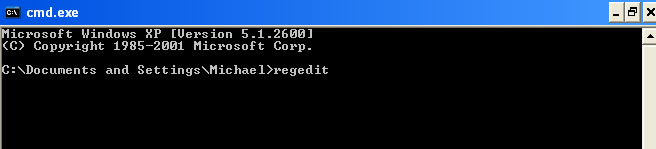
3. Then open the Registry editor using the same Windows command prompt. Type regedit and press Enter. The Registry Editor opens.


4. Locate the following registry entry:

HKEY_LOCAL_MACHINE\SOFTWARE\Microsoft\Windows NT\CurrentVersion\Winlogon\

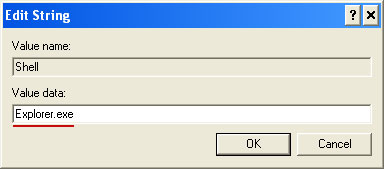
In the righthand pane select the registry key named Shell. Right click on this registry key and choose Modify.


Default value is Explorer.exe.


Modified value data points to Trojan Ransomware executable file.


Please copy the location of the executable file it points to into Notepad or otherwise note it and then change value data to Explorer.exe. Click OK to save your changes and exit the Registry editor.

5. Remove the malicous file. Use the file location you saved into Notepad or otherwise noted in step in previous step. In our case, Ukash virus was run from the Desktop. There was a file called movie.exe.

Full path: C:\Documents and Settings\Michael\Desktop\movie.exe


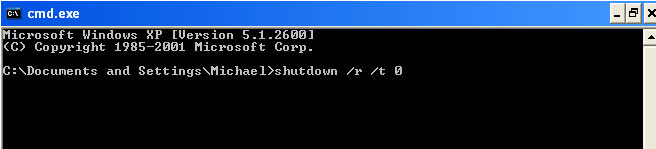
Go back into "Normal Mode". To restart your computer, at the command prompt, type shutdown /r /t 0 and press Enter.


6. Download recommended anti-malware software (direct download) and run a full system scan to remove the leftovers of this virus from your computer. That's it!


Method 5: Ukash virus removal using Kaspersky Rescue Disk:

1. Download the Kaspersky Rescue Disk iso image from the Kaspersky Lab server. (Direct download link)
Please note that this is a large downloaded, so please be patient while it downloads.

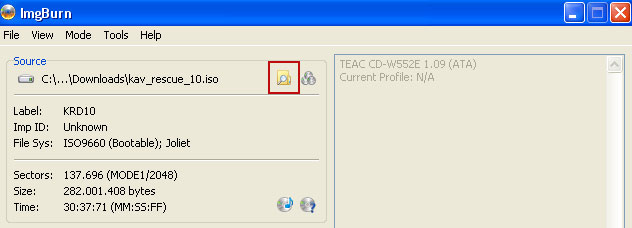
2. Record the Kaspersky Rescue Disk iso image to a CD/DVD. You can use any CD/DVD record software you like. If you don't have any, please download and install ImgBurn. Small download, great software. You won't regret it, we promise.

For demonstration purposes we will use ImgBurn.

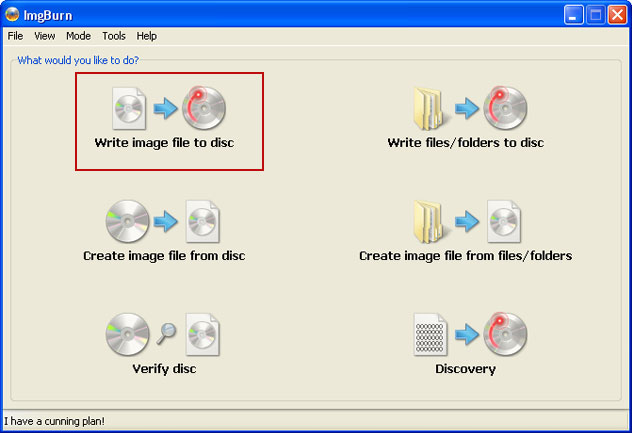
So, open up ImgBurn and choose Write image file to disc.


Click on the small Browse for file icon as show in the image. Browse into your download folder and select kav_rescue_10.iso as your source file.


OK, so know we are ready to burn the .iso file. Simply click the Write image file to disc button below and after a few minutes you will have a bootable Kaspersky Rescue Disk 10.


3. Configure your computer to boot from CD/DVD. Use the Delete or F2, F11 keys, to load the BIOS menu. Normally, the information how to enter the BIOS menu is displayed on the screen at the start of the OS boot.


The keys F1, F8, F10, F12 might be used for some motherboards, as well as the following key combinations:
  • Ctrl+Esc
  • Ctrl+Ins
  • Ctrl+Alt
  • Ctrl+Alt+Esc
  • Ctrl+Alt+Enter
  • Ctrl+Alt+Del
  • Ctrl+Alt+Ins
  • Ctrl+Alt+S
If you can enter Boot Menu directly then simply select your CD/DVD-ROM as your 1st boot device.

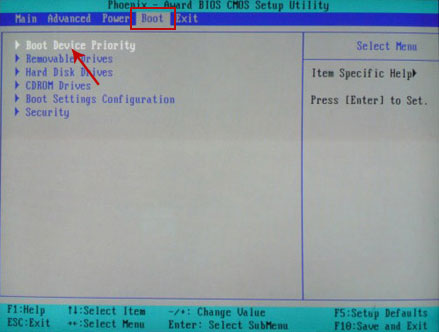
If you can't enter Boot Menu directly then simply use Delete key to enter BIOS menu. Select Boot from the main BIOS menu and then select Boot Device Priority.


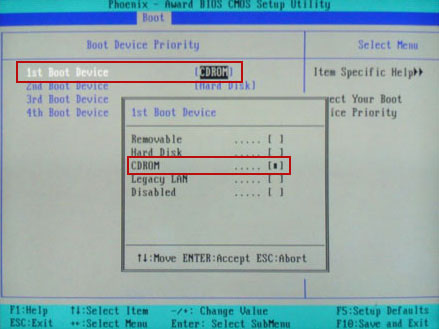
Set CD/DVD-ROM as your 1st Boot Device. Save changes and exist BIOS menu.


4. Let's boot your computer from Kaspersky Rescue Disk.

Restart your computer. After restart, a message will appear on the screen: Press any key to enter the menu. So, press Enter or any other key to load the Kaspersky Rescue Disk.


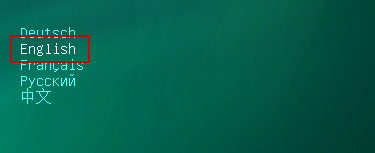
5. Select your language and press Enter to continue.


6. Press 1 to accept the End User License Agreement.


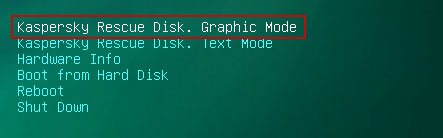
7. Select Kaspersky Rescue Disk. Graphic Mode as your startup method. Press Enter. Once the actions described above have been performed, the operating system starts.


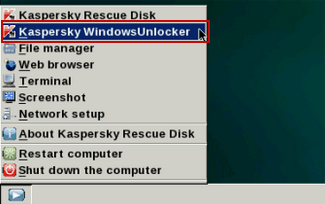
8. Click on the Start button located in the left bottom corner of the screen. Run Kaspersky WindowsUnlocker to remove Windows system and registry changes made by this virus. It won't take very long.


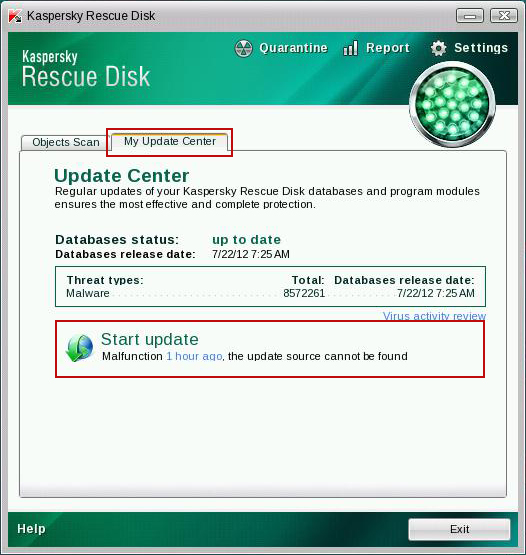
9. Click on the Start button once again and fire up the Kaspersky Rescue Disk utility. First, select My Update Center tab and press Start update to get the latest malware definitions. Don't worry if you can't download the updates. Just proceed to the next step.


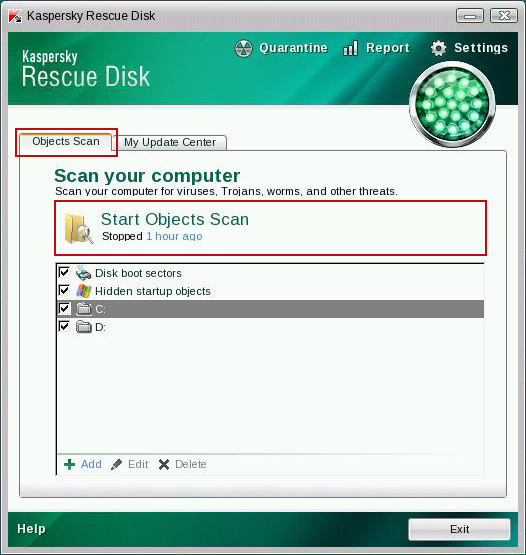
10. Select Object Scan tab. Place a check mark next to your local drive C:\. If you have two or more local drives make sure to check those as well. Then click Start Objects Scan to scan your computer for malicious software.


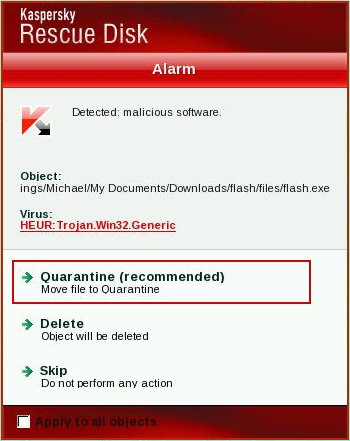
11. Quarantine (recommended) or delete every piece of malicious code detected during the system scan.


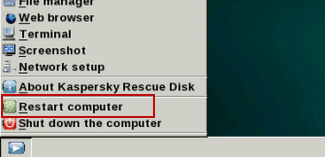
12. You can now close the Kaspersky Rescue Disk utility. Click on the Start button and select Restart computer.


13. Please restart your computer into the normal Windows mode. Download recommended anti-malware software (direct download) and run a full system scan to remove the remnants of Ukash virus and to protect your computer against these types of threats in the future.

  • Digg
  • Del.icio.us
  • StumbleUpon
  • Reddit
  • RSS