Powered by Blogger.
RSS
Showing posts with label Fake Alerts. Show all posts

Alert: Fake Google Chrome Update

A fake Google Chrome update warning pop-up page has appeared in my browser today. The fake update looks similar to the following:


Please Update to the Latest Version of Chrome


URGENT!
Your version of Chrome 27 may be outdated and could be vulnerable to attacks.

This isn't the first time when scammers push websites offering PUPs and adware for instance WebCake, as updates to Google's Chrome browser. By the way they use pretty much the same fake Firefox update page to scare Firefox users and to lure them into installing adware. Please be aware this is NOT an actual update. It could be that you just accidentally visited a shady website and got this fake update warning but if it keeps popping up like five minutes or so, then your computer is probably infected with adware or potentially unwanted software. How do you know if your PC is infected?
  • Have annoying pop-up adverts suddenly started appearing and interrupting you whenever you’re online?
  • Are you seeing a strange tool bar on your internet browser that wasn’t there previously and that you did not download or install yourself?
  • Has your computer suddenly become sluggish and started running a lot more slowly than it usually does? Is it still running slowly even after you’ve deleted unnecessary files, downloads and programs and freed up hard disk drive space or taken other maintainance actions?
  • Are you having problems accessing your anti-virus or other security software?
  • Do your computer’s settings seem to have changed without you doing anything?
  • Are there strange websites or pages saved in your ‘Favorites’ folder or bookmarked websites list?
If you’ve answered yes to one or more of the above don’t worry, you’re not going mad – but you probably have had your browser hijacked by an unscrupulous attacker. If you have encountered this update and clicked on the links it provided, please scan your computer recommend anti-malware software.


If you have any questions, please leave a comment below. Good luck and be safe online!

  • Digg
  • Del.icio.us
  • StumbleUpon
  • Reddit
  • RSS

AVASoft Professional Antivirus Firewall Alert removal guide

AVASoft Professional Antivirus Firewall Alert has blocked a program from accessing the internet – this and many other fake security alerts will be displayed on your computer if you install a rogue antivirus application called AVASoft Professional Antivirus. It's a fairly new scam to be aware of but it isn't entirely new from a technical point of view. All the rogue applications from this malware family were using the same "Firewall Alert" notification to scare users into believing that certain applications, mostly web browsers, are infected and should be closed to avoid possible data loss, etc.


AVASoft Antivirus will block web browser and other applications on your computer to protect itself from being removed. In the image shown above, you can see that the fake antivirus applications blocked Internet Explorer because it was infected with a computer worm called Svchost.Stealth.Keyloger. A computer worm with such name doesn't even exist. Besides, normally, worms do not steal sensitive information. What is more, if you take a closer look at the image, you will notice that scammers user completely differt infection name at the end of the fake secuerity warning - Lsas.Blaster.Keylogger. It says 'Continue surfing and allow Lsas.Blaster.Keylogger to send your credit card details to remove host'.

Please note that this fake application will display the same misleading warnings for pretty much every application including anti-malware software. Well, actually it will display two warnings, the other one is slightly different and claims that AVASoft Professional Antivirus has detected a harmful software that can lead to your 'PC crash'. Scary, isn't it?

To stop this fake Firewall Alert you will have to remove the rogue application and related malware. Hopefully, it didn't came bundled with rootktis. The removal guide is located here:

http://deletemalware.blogspot.com/2013/03/remove-avasoft-professional-antivirus.html

If you have any questions or need help removing it please leave a comment below. I'll be glad to help! One last thing, if you have succesfully removed this malware from your computer, you should really think about the most essential security measures you should implement right now. Why? Because, your antivirus isn't working as it should be. Each and every variant of this malware was detected by 11 or 12 antivirus products, sometimes even less. Suprisingly, all the top-notch antivirus products can't detected and block this infection which really worries me because most users use those heavily promoted ones. Antivirus software alone won't help, you should also use anti-malware software.

  • Digg
  • Del.icio.us
  • StumbleUpon
  • Reddit
  • RSS

Remove System message - Error Seek popup and related malware

System message - Error Seek is a fake warning that shows up when your computer is infected with the System Repair virus. It claims that "The drive cannot locate a specific area or track on the disk. The system cannot find the drive specified. Storage to process this request is not available." Typically, this fake error warning shows up right before the main scanners. It may be also covered with a bunch of other fake notifications, mostly about bad disk sectors, etc.


Please note that the same or very similar warnings way show up when your computer is infected with other fake system defragmenters, for instance System Fix or System File Restore. There are more than twenty of them, you may search this site for detailed write-ups and removal instructions. System message - Error Seek is just a part of more sophisticated malware infection. Very often, such applications are packed with rootkits and spyware modules. Manual removal is possible but not recommended. Just because you can stop the fake warnings doesn't mean your PC is perfect safe.

To remove this infections from your computer, please follow this removal guide. Very important: do not follow on screen instructions and do not attempt to fix reported system errors manually. You will only make the situation worse. Do not pay for the rogue application either. Scammers are really good at this and even though the payment page says you have all rights to get your money back if you are not satisfied, the truth is you won't get your money back. Simple as that. Unless you will contact your credit card company really fast and dispute the charges.

  • Digg
  • Del.icio.us
  • StumbleUpon
  • Reddit
  • RSS

Remove "Files indexation process failed" Warning (Uninstall Guide)

"Files indexation process failed" is a legitimate looking warning that advertises rogue system defragmentation utilities. System Fix, System Restore and Data Recovery just to name few. It pops up upon start up followed by misleading cascade messages and empty start menu. If you've never been hit by a virus and fake system alerts then you might think it's a genuine notification because it looks like a real thing. Hidden files and shortcuts combined with this fake Files indexation process failed warning may trick many users into thinking that their hard drives are going to fail.

Files indexation process failed
Indexation process failure may cause:
File may became unreadable
Files and documents can be lost
Operation System may slow down dramatically


You don't have to be a computer pro to notice the poor English in this warning. Anyway, to fix this problem, please follow the System Fix removal guide. Files indexation process failed security alert is a part of malware infection, you need to remove malware to stop this fake alert. If you have any questions, please leave a comment below. Good luck!

Share this information with your friends:

  • Digg
  • Del.icio.us
  • StumbleUpon
  • Reddit
  • RSS

Remove "Update your browser" Fake Warning (Uninstall Guide)

A new scareware campaign is circulating that appears to be a Mozilla Firefox (could be any other web browser) update warning. It seems that cyber crooks continue to make improvements to their social engineering lures. Fake online virus scanners when users get standard "My Computer" dialog may not work anymore because they become very well documented recently. Here's a screenshot of what the fake browser update notification looks like:

Update your browser
This page does not support your version of browser
Please update your software
Browser update

Unfortunately, it could be a successful social engineering attack against Internet users who are still using old and out-of-date web browsers. Besides, there are safe websites that use JavaScript to inform users about out-of-date web browser and in some cases, MSN forum for example, you can leave a reply with Internet Explorer only. If you visit their forum with Firefox or Chrome, you'll get a notification that your web browser is not supported. So, it could be rather difficult for some Internet users to distinguish between "Update your browser" scareware attack and legit update notifications. If you have you received this fake "Update your browser" warnings, chances that your computer is infected with a rootkit. Do not click "Browser update" button, otherwise you'll download more malware onto your computer. Also, if you wan't to check for updates, use web browser's options, ignore notifications from websites even if they appear to be from well know and popular sites. To remove the fake Update your browser warning and associated malware, please follow the removal instructions below. If you have any questions, please leave a comment below or email us. Good luck and be safe online!


"Update your browser" removal instructions:

1. Scan your computer with TDSSKiller and ZeroAccess rootkit removal tool.
2. Download free anti-malware software from the list below and run a full system scan.
NOTE: in some cases the rogue program may block anti-malware software. Before saving the selected program onto your computer, you may have to rename the installer to iexplore.exe or winlogon.exe With all of these tools, if running Windows 7 or Vista they MUST be run as administrator. Launch the program and follow the prompts. Don't forget to update the installed program before scanning.

3. Run CCleaner to remove temporarily and unnecessary files from your computer.
4. If the problem persists, please read this web document and follow the steps carefully: http://deletemalware.blogspot.com/2010/02/remove-google-redirect-virus.html

Share this information with other people:

  • Digg
  • Del.icio.us
  • StumbleUpon
  • Reddit
  • RSS

Remove "Your computer is infected with Spyware!" Alert (Uninstall Guide)

We understand that sometimes it could be difficult to distinguish between legitimate security alerts and fake warnings saying that your computer is infected with spyware, adware, Trojans and other malware. Rogue security programs and similar scareware use fake security alerts to trick users into paying for completely useless security software or installing additional malware files on the compromised computer. Yesterday we stumbled upon some fake security alerts and error messages that we thing are worth mentioning here. "Your computer is infected with Spyware!" is a fake alert caused by malicious software, specifically a Trojan horse. Here's how the fake error notification about spyware looks like:

Error
Your computer is infected with Spyware! Detected malicious programs can damage your computer and compromise your privacy. It is strongly recommended to remove them immediately.


First thing that should caught your attention is the title of this security alert. Error. What does this say to you? Probably nothing because it's unclear what causes this alert. Is this your anti-virus software or maybe it's Windows system notification? If you can't tell that right away then it might be a sign of malware infection on your computer. In such case, you should scan your computer with legitimate anti-malware application. Here's another example:
Error
Surfing without protection tool installed may cause spyware intrusion through security holes in the Web browser or in other software.


Very often, cyber criminals use fake system warnings from the system tray saying that Spyware protection is disabled or your sensitive information can be stolen to make users think that they should install some sort of computer protection software. Here are some examples of fake system warnings:
System warning
Spyware protection is disabled. Your personal data is at high risk of being stolen or misused.

System warning
Keep your computer safe from viruses and malicious programs that can slow down or break your system


Such fake security alerts are very common right now. You should always check twice before clicking on suspicious notifications or running potentially unwanted applications; otherwise you may end up with heavily infected computer. If you're experiencing such fake security alerts, please scan your computer with anti-malware software listed below. If you have any questions or need help removing malware from your computer, please leave a comment below. Good luck and be safe online!


"Your computer is infected with Spyware!" removal instructions:

1. Download free anti-malware software from the list below and run a full system scan.
NOTE: in some cases the rogue program may block anti-malware software. Before saving the selected program onto your computer, you may have to rename the installer to iexplore.exe or winlogon.exe With all of these tools, if running Windows 7 or Vista they MUST be run as administrator. Launch the program and follow the prompts. Don't forget to update the installed program before scanning.


Associated "Your computer is infected with Spyware!" files and registry values:

Files:
  • C:\Documents and Settings\[UserName]\Desktop\FakeAV\[SET OF RANDOM CHARACTERS].exe
  • C:\Documents and Settings\LocalService\Local Settings\Application Data\[SET OF RANDOM CHARACTERS].exe

Registry values:
  • HKEY_LOCAL_MACHINE\SOFTWARE\Microsoft\Windows\CurrentVersion\RunOnce\[SET OF RANDOM CHARACTERS].exe
Share this information with other people:

  • Digg
  • Del.icio.us
  • StumbleUpon
  • Reddit
  • RSS

Norton AntiVirus ENHANCED PROTECTION MODE

"Norton AntiVirus ENHANCED PROTECTION MODE" is a fake security alert that pretends to be a notification from Norton AntiVirus about virus detected on your computer. However, Norton doesn't have such protection mode, so this security alert is obviously fake and hides the presence of the malware in the system. If you've got this fake security alert then your computer is infected by a Trojan Horse.


Norton AntiVirus
ENHANCED PROTECTION MODE
Attention!
Norton AntiVirus operates under enhanced
protection mode.
This is temporary measure
necessary for immediate response to
the threat from virus.
No action is required from you.
The Trojan horse displays this fake Norton AntiVirus update notification too.


The fake security alert runs from (command line): C:\WINDOWS\update.tray-10-0-lnk\svchost.exe tray 10-0 1

In order to remove the Trojan that causes the fake Norton AntiVirus ENHANCED PROTECTION MODE alert, please scan your computer with legitimate anti-malware applications listed below. You can read more about this infection here: Avast ENHANCED PROTECTION MODE. Good luck and be safe online!


Download free anti-malware software from the list below and run a full system scan.
NOTE: in some cases the rogue program may block anti-malware software. Before saving the selected program onto your computer, you may have to rename the installer to iexplore.exe or winlogon.exe With all of these tools, if running Windows 7 or Vista they MUST be run as administrator. Launch the program and follow the prompts. Don't forget to update the installed program before scanning.

Share this information with other people:

  • Digg
  • Del.icio.us
  • StumbleUpon
  • Reddit
  • RSS

Microsoft Defender ENHANCED PROTECTION MODE

"Microsoft Defender ENHANCED PROTECTION MODE" is a fake security alert and it has nothing to do with the legitimate Microsoft Windows Defender. It doesn't even have such protection mode, so this security alert is obviously fake and hides the presence of the malware in the system. If you've got this fake security alert then your computer is infected by a Trojan Horse.


Microsoft Defender
ENHANCED PROTECTION MODE
Attention!
Microsoft Defender operates under enhanced
protection mode.
This is temporary measure
necessary for immediate response to
the threat from virus.
No action is required from you.
The Trojan horse displays this fake Microsoft Defender update notification too.


The fake security alert runs from (command line): C:\WINDOWS\update.tray-15-0-lnk\svchost.exe tray 15-0 1

In order to remove the Trojan that causes the fake Microsoft Defender ENHANCED PROTECTION MODE alert, please scan your computer with legitimate anti-malware applications listed below. You can read more about this infection here: Avast ENHANCED PROTECTION MODE. Good luck and be safe online!


Download free anti-malware software from the list below and run a full system scan.
NOTE: in some cases the rogue program may block anti-malware software. Before saving the selected program onto your computer, you may have to rename the installer to iexplore.exe or winlogon.exe With all of these tools, if running Windows 7 or Vista they MUST be run as administrator. Launch the program and follow the prompts. Don't forget to update the installed program before scanning.

Share this information with other people:

  • Digg
  • Del.icio.us
  • StumbleUpon
  • Reddit
  • RSS

Microsoft Security Essentials ENHANCED PROTECTION MODE

"Microsoft Security Essentials ENHANCED PROTECTION MODE" is a fake security alert which clearly indicates that your computer is infected with malicious software. It's designed to trick you into thinking that your computer is protected against malicious software. Microsoft Security Essentials doesn't have such protection mode, so this security alert is obviously fake and hides the presence of the malware in the system. If you've got this fake security alert then your computer is infected by a Trojan Horse.


Microsoft Security Essentials
ENHANCED PROTECTION MODE
Attention!
Microsoft Security Essentials operates under enhanced
protection mode.
This is temporary measure
necessary for immediate response to
the threat from virus.
No action is required from you.
The Trojan horse displays this fake Microsoft Security Essentials update notification too.


In order to remove the Trojan that causes the fake Microsoft Security Essentials ENHANCED PROTECTION MODE alert, please scan your computer with legitimate anti-malware applications listed below. You can read more about this infection here: Avast ENHANCED PROTECTION MODE. Good luck and be safe online!


Download free anti-malware software from the list below and run a full system scan.
NOTE: in some cases the rogue program may block anti-malware software. Before saving the selected program onto your computer, you may have to rename the installer to iexplore.exe or winlogon.exe With all of these tools, if running Windows 7 or Vista they MUST be run as administrator. Launch the program and follow the prompts. Don't forget to update the installed program before scanning.

Share this information with other people:

  • Digg
  • Del.icio.us
  • StumbleUpon
  • Reddit
  • RSS

McAfee ENHANCED PROTECTION MODE

"McAfee ENHANCED PROTECTION MODE" is a fake security warning designed to trick you into thinking that your computer is protected against malware. McAfee anti-virus doesn't have such protection mode, so this security alert is obviously fake and hides the presence of the malware in the system. If you've got this fake security alert then your computer is infected by a Trojan Horse.


McAfee
ENHANCED PROTECTION MODE
Attention!
McAfee operates under enhanced
protection mode.
This is temporary measure
necessary for immediate response to
the threat from virus.
No action is required from you.
The Trojan horse displays this fake McAfee update notification too.


The fake security alert runs from (command line): C:\WINDOWS\update.tray-9-0-lnk\svchost.exe tray 9-0 1

In order to remove the Trojan that causes the fake McAfee ENHANCED PROTECTION MODE alert, please scan your computer with legitimate anti-malware applications listed below. You can read more about this infection here: Avast ENHANCED PROTECTION MODE. Good luck and be safe online!


Download free anti-malware software from the list below and run a full system scan.
NOTE: in some cases the rogue program may block anti-malware software. Before saving the selected program onto your computer, you may have to rename the installer to iexplore.exe or winlogon.exe With all of these tools, if running Windows 7 or Vista they MUST be run as administrator. Launch the program and follow the prompts. Don't forget to update the installed program before scanning.

Share this information with other people:

  • Digg
  • Del.icio.us
  • StumbleUpon
  • Reddit
  • RSS

Dr.Web ENHANCED PROTECTION MODE

"Dr.Web ENHANCED PROTECTION MODE" is a misleading security warning designed to trick you into thinking that your computer is protected against malware when in reality Trojan horse downloads and installs addition malcode on your computer. Dr.Web anti-virus doesn't have such protection mode, so this security alert is obviously fake. If you've got this fake security alert then your computer is infected by a Trojan Horse.


Dr.Web
ENHANCED PROTECTION MODE
Attention!
Dr.Web operates under enhanced
protection mode.
This is temporary measure
necessary for immediate response to
the threat from virus.
No action is required from you.
The Trojan horse displays this fake Dr.Web update notification too.


The fake security alert runs from (command line): C:\WINDOWS\update.tray-11-0-lnk\svchost.exe tray 11-0 1

In order to remove the Trojan that causes the fake Dr.Web ENHANCED PROTECTION MODE alert, please scan your computer with legitimate anti-malware applications listed below. You can read more about this infection here: Avast ENHANCED PROTECTION MODE. Good luck and be safe online!


Download free anti-malware software from the list below and run a full system scan.
NOTE: in some cases the rogue program may block anti-malware software. Before saving the selected program onto your computer, you may have to rename the installer to iexplore.exe or winlogon.exe With all of these tools, if running Windows 7 or Vista they MUST be run as administrator. Launch the program and follow the prompts. Don't forget to update the installed program before scanning.

Share this information with other people:

  • Digg
  • Del.icio.us
  • StumbleUpon
  • Reddit
  • RSS

Comodo ENHANCED PROTECTION MODE

"Comodo ENHANCED PROTECTION MODE" is a fake security alert designed to trick you into thinking that your computer is protected and hide presence of malware. Comodo anti-virus doesn't have such protection mode. If you've got this fake security alert then your computer is infected by a Trojan Horse.


Comodo
ENHANCED PROTECTION MODE
Attention!
Comodo operates under enhanced
protection mode.
This is temporary measure
necessary for immediate response to
the threat from virus.
No action is required from you.
The Trojan horse displays this fake Comodo update notification too.


The fake security alert runs from (command line): C:\WINDOWS\update.tray-5-0-lnk\svchost.exe tray 5-0 1

In order to remove the Trojan that causes the fake Comodo ENHANCED PROTECTION MODE alert, please scan your computer with legitimate anti-malware applications listed below. You can read more about this infection here: Avast ENHANCED PROTECTION MODE. Good luck and be safe online!


Download free anti-malware software from the list below and run a full system scan.
NOTE: in some cases the rogue program may block anti-malware software. Before saving the selected program onto your computer, you may have to rename the installer to iexplore.exe or winlogon.exe With all of these tools, if running Windows 7 or Vista they MUST be run as administrator. Launch the program and follow the prompts. Don't forget to update the installed program before scanning.

Share this information with other people:

  • Digg
  • Del.icio.us
  • StumbleUpon
  • Reddit
  • RSS

Avira AntiVir ENHANCED PROTECTION MODE

"Avira AntiVir ENHANCED PROTECTION MODE" is a fake security alert, Avira AntiVir doesn't have such protection mode. If you've got this fake security alert then your computer is infected by a Trojan Horse. It displays this fake security alert and restricts access to the legitimate Avira AntiVir security software to make you think that your computer is protected against malware when in reality it's not.


Avira AntiVir
ENHANCED PROTECTION MODE
Attention!
Avira AntiVir operates under enhanced
protection mode.
This is temporary measure
necessary for immediate response to
the threat from virus.
No action is required from you.
The Trojan horse displays fake Avira AntiVir update notification.


In order to remove the Trojan that causes the fake Avira AntiVir ENHANCED PROTECTION MODE alert, please scan your computer with legitimate anti-malware applications listed below. You can read more about this infection here: Avast ENHANCED PROTECTION MODE. Good luck and be safe online!


Download free anti-malware software from the list below and run a full system scan.
NOTE: in some cases the rogue program may block anti-malware software. Before saving the selected program onto your computer, you may have to rename the installer to iexplore.exe or winlogon.exe With all of these tools, if running Windows 7 or Vista they MUST be run as administrator. Launch the program and follow the prompts. Don't forget to update the installed program before scanning.

Share this information with other people:

  • Digg
  • Del.icio.us
  • StumbleUpon
  • Reddit
  • RSS

Remove "Avast ENHANCED PROTECTION MODE" Trojan (Uninstall Guide)

"Avast ENHANCED PROTECTION MODE" is a fake security alert that gives a false sense of security, the legitimate Avast! anti-virus doesn't have such protection mode. If you've got this fake security alert then your computer is infected by a Trojan horse. Cyber crooks use various methods, including social engineering, to distribute malicious software. Malicious links began to spread on Facebook and through MSN Messenger. Here's an example of the chat conversation snippet:

[friend]: hi, how are you?
[you]: hey
[friend]: Wanna laugh?
[you]: sure
[friend]: It is you on the video? )) want to see?)
[you]: ???
[friend]: [malicious domain]


The malicious link usually has the following structure http://[domain]/FacebookUserID and it redirects users to fake Youtube websites. In order to watch the video the user has to install the latest version of Flash player, Flash-Player.exe. Obviously, it's not a legitimate Flash player but a Trojan horse. Once executed, it returns the following error:


While running, it downloads and installs additional components on your computer. "Avast ENHANCED PROTECTION MODE" Trojan uninstalls or blocks your anti-virus application, created new shortcuts and displays the following security alert:

Avast
ENHANCED PROTECTION MODE
Attention!
Avast operates under enhanced
protection mode.
This is temporary measure
necessary for immediate response to
the threat from virus.
No action is required from you.


Here's how the legitimate Avast! virus notification looks like:


As you can see, the Trojan horse clearly want to trick you into thinking that your computer is protected and that you shouldn't take any actions to remove the virus which actually does not even exists. The Trojan also displays fake Avast update notification in the bottom right hand corner of your computer screen.


The legitimate Avast! update notification looks entirely different. If you have the "Avast ENHANCED PROTECTION MODE" Trojan on your computer, please follow the removal instructions below to remove it from your computer. Obviously, you won't be able to use your anti-virus software, so you will have to use other malware removal tools listed below. If you have any questions or need help remove this malicious software from your computer, please leave a comment below. Good luck and be safe online!

Update: the Trojan blocks other anti-virus software too and displays the same security alerts.

"Avast ENHANCED PROTECTION MODE" Trojan removal instructions:

Download free anti-malware software from the list below and run a full system scan.
NOTE: in some cases the rogue program may block anti-malware software. Before saving the selected program onto your computer, you may have to rename the installer to iexplore.exe or winlogon.exe With all of these tools, if running Windows 7 or Vista they MUST be run as administrator. Launch the program and follow the prompts. Don't forget to update the installed program before scanning.

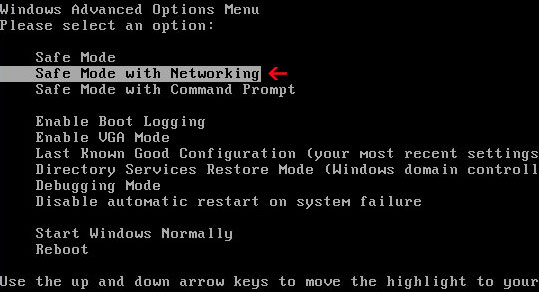
If you can't download it, please reboot your computer is "Safe Mode with Networking". As the computer is booting tap the "F8 key" continuously which should bring up the "Windows Advanced Options Menu" as shown below. Use your arrow keys to move to "Safe Mode with Networking" and press Enter key. Open Internet Explorer and download STOPzilla. Once finished, go back into Normal Mode and run it. That's It!

Read more detailed instructions here: http://www.computerhope.com/issues/chsafe.htm


NOTE: Login as the same user you were previously logged in with in the normal Windows mode.


Associated "Avast ENHANCED PROTECTION MODE" files and registry values:

Files:
  • C:\WINDOWS\btc_client_iplist.txt
  • C:\WINDOWS\ddh_iplist.txt
  • C:\WINDOWS\front_ip_list.txt
  • C:\WINDOWS\geoiplist
  • C:\WINDOWS\geoiplist.rar
  • C:\WINDOWS\iecheck_iplist.txt
  • C:\WINDOWS\info1
  • C:\WINDOWS\iplist.txt
  • C:\WINDOWS\l1rezerv.exe
  • C:\WINDOWS\phoenix
  • C:\WINDOWS\phoenix.rar
  • C:\WINDOWS\proc_list1.log
  • C:\WINDOWS\rpcminer
  • C:\WINDOWS\rpcminer.rar
  • C:\WINDOWS\services32.exe
  • C:\WINDOWS\sysdriver32.exe
  • C:\WINDOWS\sysdriver32_.exe
  • C:\WINDOWS\systemup.exe
  • C:\WINDOWS\ufa
  • C:\WINDOWS\ufa.rar
  • C:\WINDOWS\unrar.exe
  • C:\WINDOWS\update.1
  • C:\WINDOWS\update.2
  • C:\WINDOWS\update.5.0
  • %Temp%\[SET OF RANDOM CHARACTERS].exe
Share this information with other people:

  • Digg
  • Del.icio.us
  • StumbleUpon
  • Reddit
  • RSS

Remove "Your codec version is too old" (Uninstall Guide)

"Your codec version is too old" is a fake error message designed to trick you into thinking that the video cannot be played because you either do not have the latest version of codecs or the video format is not supported.

Your codec version is too old
This video format is not supported


Usually, right after this fake error message gets displayed, another one appears in the bottom right hand corner telling you to update the video codec.
Video error
This video cannot be played due to old version of
your codecs


If you choose to update the codec, it will give you the payment page, asking you to purchase the bogus Home Codec pack and video converter suite.


"Your codec version is too old" payment page:


The Trojans displaying this fake "Your codec version is too old" are being distributed in pretty much the same way as rogue security products, i.e., through the use of fake online virus scanners, infected websites and social engineering. Cyber crooks have probably decided to mix up things a little. Besides, rogue codec packs are nothing new.

It's worth mentioning that you shouldn't install every codec pack available; otherwise you may end up with such scareware on your computer. By default, Windows Media Player supports all popular video and audio file formats, however video and audio content can be compressed with a wide variety of codecs and if the appropriate codecs are not installed on your computer, you won't be able to play the video file. In such case, you should install only legitimate and known codec pack: DivX, Cinepak, Indeo and some others. Or you can use VLC multimedia player for various audio and video formats. If you have any questions or suggestions, please leave a comment below. Good luck and be safe online!


"Your codec version is too old" removal instructions:

1. Download free anti-malware software from the list below and run a full system scan.
NOTE: in some cases the rogue program may block anti-malware software. Before saving the selected program onto your computer, you may have to rename the installer to iexplore.exe or winlogon.exe With all of these tools, if running Windows 7 or Vista they MUST be run as administrator. Launch the program and follow the prompts. Don't forget to update the installed program before scanning.

2. New threats appear every day. In order to protect your PC from such (new) infections we strongly recommend you to use ESET Smart Security.


Associated "Your codec version is too old" files and registry values:

Files:

Windows XP
  • C:\Documents and Settings\All Users\Application Data\[SET OF RANDOM CHARACTERS].exe
  • C:\Documents and Settings\All Users\Application Data\ip\[SET OF RANDOM CHARACTERS].exe
  • C:\Documents and Settings\All Users\Application Data\ip\FRed32.dll
  • C:\Documents and Settings\All Users\Application Data\ip\instr.ini
  • C:\Documents and Settings\All Users\Application Data\ip\SmartGeare.exe
  • C:\Documents and Settings\All Users\Application Data\ip\spoof.avi
  • C:\WINDOWS\system32\[SET OF RANDOM CHARACTERS].nls
Windows Vista/7
  • C:\ProgramData\[SET OF RANDOM CHARACTERS].exe
  • C:\ProgramData\ip\[SET OF RANDOM CHARACTERS].exe
  • C:\ProgramData\ip\FRed32.dll
  • C:\ProgramData\ip\instr.ini
  • C:\ProgramData\ip\SmartGeare.exe
  • C:\ProgramData\ip\spoof.avi
  • C:\WINDOWS\system32\[SET OF RANDOM CHARACTERS].nls
Share this information with other people:

  • Digg
  • Del.icio.us
  • StumbleUpon
  • Reddit
  • RSS

Remove Trojan-BNK.Win32.Keylogger.gen (Uninstall Guide)

Trojan-BNK.Win32.Keylogger.gen is a fake virus warning (a pop-up window that says your PC is infected). It deceives people into downloading/installing various malware voluntarily. Trojan-BNK.Win32.Keylogger.gen is a non-existent virus. It may also prompt users to obtain a full version of fake anti-virus software in order to remove threats which do not even exist. If the Trojan-BNK.Win32.Keylogger.gen keeps popping up on your computer, please use legitimate anti-malware to remove it. You should protect yourself with common sense and legitimate anti-virus software. Don't forget, cyber criminals will use every dirty trick in the book to get their hands on your money. Good luck and be safe online!

XP Internet Security 2011 or XP Antispyware 2012 Firewall Alert saying that your web browser is infected with Trojan-BNK.Win32.Keylogger.gen. The fake warning states that your sensitive information can be stolen.


Trojan-BNK.Win32.Keylogger.gen removal instructions:

1. Use any of the debugged serial keys listed below to register the rogue application in order to stop the fake security alerts. Just click the Registration button and then select "Activate manually". Don't worry, this is completely legal.


9443-077673-5028
3425-814615-3990
2233-298080-3424
1147-175591-6550


Once this is done, you are free to install anti-malware software and remove the rogue anti-virus program from your computer properly.

2. Download recommended anti-malware software (direct download) and run a full system scan to remove this virus from your computer.

To learn more about this malware and to find alternate removal instructions, please read this article:

http://deletemalware.blogspot.com/2011/06/remove-xp-antispyware-2012-xp-internet.html

  • Digg
  • Del.icio.us
  • StumbleUpon
  • Reddit
  • RSS

Remove Apple security center (Uninstall Guide)

Apple security center is a fake virus scanner that reports non-existent infections on your computer. It is in no way associated with Apple Company. It's a JavaScript-based fake scanner that looks just like a Mac OS X Finder window. It doesn't actually scan your computer. The fake Apple security center displays predetermined list of falsified infections, e.g., Trojan.OSX.RSPlug.P, Exploit.OSX.Small, Virus.MacOS.Init17, etc. Please note, cyber criminals may use real Mac malware names in case you would search for a certain malware name to is if it actually exists. The fake virus scanner also indicates that it is part of Apple Security Alert. Apple security center distributes other malware, usually fake anti-virus software, e.g, MAC Defender, Mac Security, Mac Protector. When you click or close the fake scanner page you are prompted to download a .zip or a.mpkg file onto your Mac. Merely visiting the Apple security center scanner doesn't compromise your Mac. As long as you don't install anything, you're fine. You should protect yourself with common sense and legitimate anti-virus software. If you suspect that your computer is infected, run a full system scan with Sophos Antivirus or ESET Cybersecurity. If you have any questions, please leave a comment below. Good luck and be safe online!

  • Digg
  • Del.icio.us
  • StumbleUpon
  • Reddit
  • RSS

Remove "Warning! Spyware detected on your computer!" (Uninstall Guide)

If your computer has a blue desktop background and a yellow/blue warning in the middle saying "Warning! Spyware detected on your computer! Install an antivirus or spyware remover to clean your computer" then your computer is infected with a Trojan horse. Although, it's an old fake security warning, it's still being used by cyber-criminals to scare you into believing that your computer is infected with viruses. The Trojan horse that displays this fake warning distributes rogue security software and other malware. This fake "Warning! Spyware detected on your computer!" Trojan creates a couple of randomly named .scr and .bmp files in C:\Windows\System32 folder and replaces the original values in Windows registry. It also drops other offending files that download/request other malicious files from Internet. Fake security warnings are nothing new for Windows users. If you Desktop background was replaced with a fake warning sign or you keep getting random pop-ups, please run a full system scan with anti-malware software. Good luck and be safe online!


Download free anti-malware software from the list below and run a full system scan.

NOTE: in some cases the rogue program may block anti-malware software. Before saving the selected program onto your computer, you may have to rename the installer to iexplore.exe, explorer.exe or winlogon.exe. With all of these tools, if running Windows 7 or Vista they MUST be run as administrator. Launch the program and follow the prompts. Don't forget to update the installed program before scanning.

New threats appear every day. In order to protect your PC from such (new) infections we strongly recommend you to use ESET NOD32 Antivirus 4.


Associated files and registry values:

Files:
  • C:\WINDOWS\system32\[SET OF RANDOM CHARACTERS].scr
  • C:\WINDOWS\system32\[SET OF RANDOM CHARACTERS].bmp
Registry values:
  • HKEY_CURRENT_USER\Control Panel\Desktop SCRNSAVE.EXE "C:\WINDOWS\system32\[SET OF RANDOM CHARACTERS].scr"
  • HKEY_CURRENT_USER\Control Panel\Desktop ConvertedWallpaper "C:\WINDOWS\system32\[SET OF RANDOM CHARACTERS].bmp"
  • HKEY_CURRENT_USER\Control Panel\Desktop OriginalWallpaper "C:\WINDOWS\system32\[SET OF RANDOM CHARACTERS].bmp"
  • HKEY_CURRENT_USER\Control Panel\Desktop Wallpaper "C:\WINDOWS\system32\[SET OF RANDOM CHARACTERS].bmp"
Share this information with other people:

  • Digg
  • Del.icio.us
  • StumbleUpon
  • Reddit
  • RSS

Remove Critical Hard Disk Drive Error Warning (Uninstall Guide)

"Critical Hard Disk Drive Error" is a fake warning that you may see when the fake Windows Repair program is installed on your computer. The same fake error message may pop-up when your computer is infected with Windows Diagnostic and Windows Restore rogue applications. It states that a critical hard disk drive error (a bad sector) has been detected! It may supposedly cause data corruption, hard drive inaccessibility, and system errors or failures. In order to fix these errors you will be prompted to pay for a full version of the fake Windows Repair tool or it could be any other scareware from this family, e.g. Windows Restore. Please do not give them your credit card details because there is no guarantee that your credit card details aren't going to be sold to other third parties. If you got this "Critical Hard Disk Drive Error" warning as shown in the image below, scan your computer with anti-malware software. If you want to learn more about this scareware or you need help removing it, please follow this removal guide. Good luck and be safe online!

  • Digg
  • Del.icio.us
  • StumbleUpon
  • Reddit
  • RSS