Powered by Blogger.
RSS
Showing posts with label Adware. Show all posts

What is PUP.Optional.OpenCandy and how to remove it?

Computer viruses and malicious software are very real threats that can have a serious effect on the functionality of our computers and on the safety of our data, our bank accounts and even our identities. Most of us have been blighted by adware – those annoying popup windows advertising unsavory looking websites – and the first thing that most of us do when we realize we’ve been infected is to take steps to delete the offending software.

But how does adware, other forms of malware and unwanted software find its way on to your PC or laptop in the first place? In many cases it will sneak its way on via a program that you are installing, streaming or downloading. Potentially Unwanted Programs, (termed PUP’s for short) and other malware are often bundled with software such as PDF document creators or with the videos, TV shows, movies and music that are you are downloading. Therefore you should always make sure that you have a reputable and up to date anti-malware software program running on your machine at all times.


Whilst PUP.Optional.OpenCandy is not technically speaking a virus, this PUP can be extremely annoying and quite difficult to get rid of. It will come loaded with adware, which as anyone who has been infected by adware can tell you, can drive you to the brink of insanity with its relentless adverts, plus it will very likely hijack your browser and install a strange and unwanted toolbar on your machine too. Not only do unwanted toolbars get in the way but they can direct you to websites that the creators want you to visit and can in general make using your computer a real user-unfriendly experience. PUP.Optional.OpenCandy is also a form of spyware which enables it to be installed deep within your PC’s operating system so that it is harder for you to find – and therefore delete.

So the annoyances and dangers of PUP’s are clear but how do you stop unwittingly installing them on your PC? Your anti-malware software is the most helpful tool in your arsenal but you also need to pay attention to what you’re downloading too. It might seem like a nuisance but reading the end user license agreement carefully when you’re downloading or installing something is an absolute must. Because PUP’s come packaged with freeware they will often be mentioned somewhere in the wording. If you spot a reference to a PUP, malware, adware or additional software to the actual one you are downloading you should make sure you uncheck any boxes that appear to be offering something ‘extra’. Either that or decide how important that download is and if you really do need or want it.

The two rules to remember therefore when protecting yourself from a PUP such as PUP.Optional.OpenCandy is to exercise caution, only download things from sites you trust and to run your anti-malware regularly. Since this PUP comes bundled with other unwanted applications, it would be a good idea to run a full system scan with anti-malware software.

Written by Michael Kaur, http://deletemalware.blogspot.com


PUP.Optional.OpenCandy removal instructions:

1. Download recommended anti-malware software and run a full system scan to remove PUP.Optional.OpenCandy and associated malware from your computer.


2. Remove potentially unwanted extensions from your web browser.

Google Chrome:
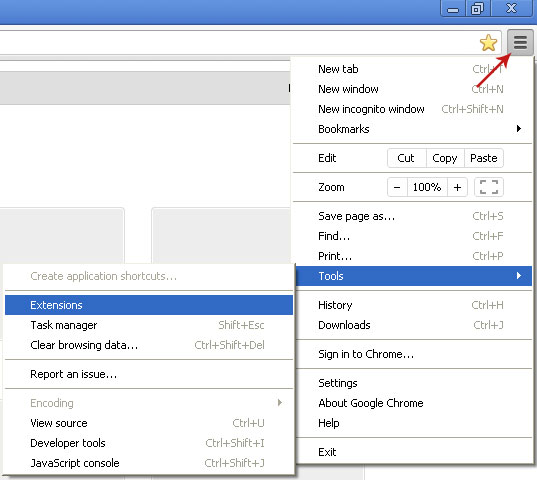
1. Click on Chrome menu button. Go to ToolsExtensions.
2. Click on the trashcan icon and remove the extensions that might be causing Chitka pop ups. Basically, remove all extensions that you didn't install. It's perfectly OK to remove all extensions since by default Google Chrome comes without any extensions.

Mozilla Firefox:
1. Go to ToolsAdd-ons.
2. Select Extensions. Remove all extensions that you didn't install. Please note, by default Firefox comes without any extensions.

Internet Explorer:
1. Go to ToolsManage Add-ons. If you have the latest version, simply click on the Settings button.
2. Select Toolbars and Extensions. Remove all add-ons that you didn't install or you believe may cause those annoying pop-ups to show up.

3. Download CCleaner and tidy up your computer, remove temp files, etc.

  • Digg
  • Del.icio.us
  • StumbleUpon
  • Reddit
  • RSS

Remove cloud-connect.net virus (Removal Guide)

Cloud-connect.net is a tracking website which is also used to display pop up ads on infected computers. If you get pop up ads from this website then your computer is infected with adware and malicious web browser extensions. Usually, it's called browser hijacking. It is an irritating practice and one that is pretty much as the name suggests. What happens if you’ve been hijacked is that malicious software or websites (or sometimes both) display ads or change your default browser settings without either your knowledge or your permission – i.e. your browser has been taken over by force – it has been hijacked.

What this then means is that virus which causes cloud-connect.net popups to show up will redirect you to a web page that you may have no interest in visiting. These websites are usually stuffed full of adverts, are gambling sites, weight loss sites or fake flash player update websites. Maybe you don’t actually mind visiting these sites but chances are you were trying to reach a completely different online destination in the first place before you got redirected so it can still be annoying. You will probably also find that you are bombarded with a never ending rotation of pop-up adverts.


To remove cloud-connect.net virus from your computer you will have to uninstall recently installed applications and scan your computer with recommend anti-malware software. Pop-up blockers rarely help in such cases. Re-installing your web browser probably won't help you either. Anti-malware applications should be able to identify the browser hijacker and will then either scan your infected files and make them immune to further hijacking or they will allow you see all of the programs that are on your system the next time you log on so that you can choose which ones you allow to run.

If you’ve run the scan and rebooted your system and you’ve still not managed to get rid of the cloud-connect.net virus, then you have picked up a very nasty strain of hijacking and you will probably need to seek professional help as the browser hijacker will very likely have been installed onto your PC via another application that was installed without your knowledge or permission. In these cases the malicious software is notoriously difficult to even find on your computer as it will have been hidden deep in the depths of your system making it virtually impossible for a regular PC user to find and delete.

And if you don’t have anti-malware software installed on your PC – as soon as you’ve got the problem sorted out that should be the very next thing that you do before you become the victim of a browser hijacking for the second time!

If you have any questions or need help removing this malware from your computer, please leave a comment below. Just make sure you did everything correctly as explained in the removal guide below. Good luck and be safe online!

Written by Michael Kaur, http://deletemalware.blogspot.com


Cloud-connect.net virus removal instructions:

1. First of all, download recommended anti-malware software and run a full system scan. It will detect and remove this infection from your computer. You may then follow the manual removal instructions below to remove the leftover traces of this browser hijacker. Hopefully you won't have to do that.


2. Uninstall recently installed applications including web browser extensions and related programs from your computer using the Add/Remove Programs control panel (Windows XP) or Uninstall a program control panel (Windows 7 and Windows 8).

Go to the Start Menu. Select Control PanelAdd/Remove Programs.
If you are using Windows Vista or Windows 7, select Control PanelUninstall a Program.


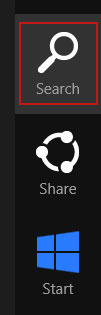
If you are using Windows 8, simply drag your mouse pointer to the right edge of the screen, select Search from the list and search for "control panel".


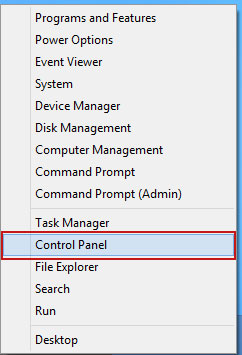
Or you can right-click on a bottom left hot corner (formerly known as the Start button) and select Control panel from there.


3. When the Add/Remove Programs or the Uninstall a Program screen is displayed, scroll through the list of currently installed programs and remove Auto-Lyrics, DownloadTerms, LyricsPal, FindLyrics, LyricsContainer and any other recently installed application.


Simply select the application and click Remove. If you are using Windows Vista, Windows 7 or Windows 8, click Uninstall up near the top of that window. When you're done, please close the Control Panel screen.


Remove cloud-connect.net from Google Chrome:

1. Click on Chrome menu button. Go to ToolsExtensions.


2. Click on the trashcan icon to remove Auto-Lyrics, DownloadTerms, LyricsPal, FindLyrics, LyricsContainer or any other recently installed extension.


Remove cloud-connect.net from Mozilla Firefox:

1. Open Mozilla Firefox. Go to ToolsAdd-ons.


2. Select Extensions. Remove Auto-Lyrics, DownloadTerms, LyricsPal, FindLyrics, LyricsContainer or any other recently installed extension. Close the window.


Remove cloud-connect.net from Internet Explorer:

1. Open Internet Explorer. Go to ToolsManage Add-ons.


2. Select Toolbars and Extensions. Remove Auto-Lyrics, DownloadTerms, LyricsPal, FindLyrics, LyricsContainer Internet Explorer add-ons.

  • Digg
  • Del.icio.us
  • StumbleUpon
  • Reddit
  • RSS

Remove Savings Hero ads from Chrome, Firefox and Internet Explorer

If you are reading this article it is probably fair to say that you want to find out a little bit more about adware called Savings Hero. If so, you might also be wondering how this adware and its nasty bigger brother, spyware, find their way on to your PC and most importantly how to remove it. Read on and we’ll take a look.

Savings Hero web browser extenions is categorized as adware and usually ends up on your computer system because you have downloaded something free from the internet. It often comes bundled with shareware and freeware so if you’re a user who likes to download TV shows, music, freebie games and the like, then you have a very high chance of also downloading this annoying adware. In fact you have probably already noticed that after you’ve downloaded some free software your computer was then inundated with loads of annoying pop up advertising windows, ad banners or pop under windows – the ones running behind the web page you are viewing. Here's an example of a topsearchresults.org popup advertisement that you will likely get if your computer is infected. As you can see, it was clearly spying me, collecting my search queries and then displaying relevant ads. So, it's not only adware, but also spyware.


If you think about it it figures that if someone is sharing or creating a program or software for absolutely free that they normally want to find a way to recoup their costs or even make a profit somewhere along the line. How they do this is by hiding Savings Hero software packaged within the download that you do want that will show you these adverts.

It is also likely, particularly in the case of freeware, that if you do find yourself infected with adware and even worse spyware, that you won’t be able to get in touch with the program developers to ask how to remove it. Customer care hotlines do not exist in this world!

Malicious web browser extensions can also be installed if you happen to visit a rogue web page that is lacking in security. This allows them to be installed on your PC without your knowledge or permission. Normally this is achieved via security loop holes in ActiveX or Java, which is a whole other story.

Here are a few other Click to Continue > by Savings Hero ads formats. This adware uses two ad formats: inline ads and pop ups.


If you suspect that you have Savings Hero on your computer, and let’s face it, it’s pretty obvious thanks to the bombardment of pop up ads, there are a few programs on the internet that you can use to track it down and remove it. Please read the removal guide below for more information.

Normally, Savings Hero can be removed manually. However, if you are not completely computer savvy or a bit of a technophobe and you are worried about poking around in your computer’s files and areas that you don’t usually visit it is, again, best to follow the Savings Hero removal guide below. If you need help, simply leave a comment below. You don’t have to feel silly asking for advice – and it’s far better to ask than the alternative which is either being infected with adware or deleting something that your machine actually needs to run. Besides, this application comes bubdled with malware, mostly Trojan downloaders and PUPs. Even if you removed it manually, you should still scan your computer with recommended anti-malware software.

The other big thing to remember is to always keep your anti-malware software up to date with the latest patches. Savings Hero developers don’t rest on their laurels and as fast as they can bring one version out, a new ‘improved’ version will be hot on its heels. Naturally the good anti-malware companies move at a similar pace to ensure that their software can take care of ‘upgraded’ malware, which is why they are constantly issuing new patches to try and combat the scourge that is adware, spyware and all their cousins.

Written by Michael Kaur, http://deletemalware.blogspot.com


Savings Hero removal instructions:

1. First of all, download recommended anti-malware software and run a full system scan. It will detect and remove this infection from your computer. You may then follow the manual removal instructions below to remove the leftover traces of this infection. Hopefully you won't have to do that.


2. Remove Savings Hero from your computer using the Add/Remove Programs control panel (Windows XP) or Uninstall a program control panel (Windows 7 and Windows 8).

Go to the Start Menu. Select Control PanelAdd/Remove Programs.
If you are using Windows Vista or Windows 7, select Control PanelUninstall a Program.


If you are using Windows 8, simply drag your mouse pointer to the right edge of the screen, select Search from the list and search for "control panel".


Or you can right-click on a bottom left hot corner (formerly known as the Start button) and select Control panel from there.


3. When the Add/Remove Programs or the Uninstall a Program screen is displayed, scroll through the list of currently installed programs and remove Savings Hero.


If you are using Windows Vista, Windows 7 or Windows 8, click Uninstall up near the top of that window. When you're done, please close the Control Panel screen.


Remove Savings Hero ads from Google Chrome:

1. Click on Chrome menu button. Go to ToolsExtensions.


2. Click on the trashcan icon to remove the Savings Hero extension:


Remove Savings Hero ads from Mozilla Firefox:

1. Open Mozilla Firefox. Go to ToolsAdd-ons.


2. Select Extensions. Click Remove button to remove Savings Hero extension.


Remove Savings Hero ads from Internet Explorer:

1. Open Internet Explorer. Go to ToolsManage Add-ons. If you have the latest version, simply click on the Settings button.


2. Select Toolbars and Extensions. Click Remove/Disable button to remove the Savings Hero browser add-on by FunApps.

  • Digg
  • Del.icio.us
  • StumbleUpon
  • Reddit
  • RSS

Datasrvrs virus removal guide

If you get a pop up of datasrvrs when you click a link on a site which then forwards you to another website, for example to do online surveys or to update your Flash Player then your computer is infected with adware and very likely other malicious software.

So what is datasrvrs.com? It's a quite popular tracking site which belongs to a certain advertising network. It redirects users to specific offers and sites. The website itself isn't malicious, that's why it doesn't matter who owns it. The thing is that scammers often try to manipulate advertising platforms. They infect PCs and then display survey popups to earn some quick cash. Even though, adware isn't the most dangerous infection you may get, you still need to remove it from your computer. And it goes without saying that these are normally adverts you didn’t want, didn’t ask for and are getting bugged by when you have to keep closing them time after time. The program will run whenever you’re online which means that no matter what website you’re visiting, you’ll be bombarded with a flood of pop-up windows and adverts from datasrvrs.com.


But that’s not all and adware garners most of its unsavory reputation due to the fact that as well as being really annoying, it also tracks and monitors which websites you are looking at, uses the data gleaned to compile a ‘profile’ on you and then sends that personal information about you on to a third party. This third party will then tailor the adverts you receive via the software to your browsing habits, thus increasingly the likelihood of you clicking on them. They may also sell your data on to an unscrupulous other party who have more serious intentions in mind, such as fraud or identity theft.

It’s not just the datasrvrs pop-up windows that you have to watch out for as the program’s code – i.e. adverts - may also take the format of pop-under windows – pages that appear behind the internet page you are currently looking at, as an advertising banner or as a bar that appears in your internet browser.

The problem is that datasrvrs and associated programs are sneaky and they don’t normally tell you if you are installing adware or spyware along with them. You may find reference to them – often very obliquely worded – in the EULA – the End User License Agreement, also known as that boring box of text that pops up asking us if we agree with the Terms and Conditions when we are about to download or install something. The problem is with this is that many of us don’t bother to read it anyway, even if we could decipher the mumbo jumbo and realized that adware has been bundled with it.

So, datasrvrs is pretty hard to spot at the initial stage. Not so subtle when it infects your computer but there you go. Should you want to familiarize yourself with some of the most common strains of adware that are out there you might want to keep an eye out for the following: Delta Search, Sweetpacks, Qvo6, Searchnu, Webcake, Search Conduit, CouponDropDown.

You know how it found its way onto your computer and you know what it does but how can you be proactive and stop datasrvrs virus from infecting your PC’s system in the first place? You should follow the number one rule and install some malware removal software or an anti-malware program. Once installed, or if you are already using one, make sure that you keep it updated so that it is always on top of the latest types of malware. As adware companies are constantly updating their malicious programs and releasing newer versions you need to make sure you have the latest updates to combat them and stop them in their tracks before they drive you insane and leave you vulnerable to further attack. Finally, to remove datasrvrs and associated malware from your computer, please follow the removal instructions below. If you have any questions or need help, please leave a comment below. Good luck and be safe online!

Written by Michael Kaur, http://deletemalware.blogspot.com


Datasrvrs removal instructions:

1. First of all, download recommended anti-malware software and run a full system scan. It will detect and remove this adware infection from your computer. You may then follow the manual removal instructions below to remove the leftover traces of this adware. Hopefully you won't have to do that that.


2. Remove Datasrvrs related programs from your computer using the Add/Remove Programs control panel (Windows XP) or Uninstall a program control panel (Windows 7 and Windows 8).

Go to the Start Menu. Select Control PanelAdd/Remove Programs.
If you are using Windows Vista or Windows 7, select Control PanelUninstall a Program.


If you are using Windows 8, simply drag your mouse pointer to the right edge of the screen, select Search from the list and search for "control panel".


Or you can right-click on a bottom left hot corner (formerly known as the Start button) and select Control panel from there.


3. When the Add/Remove Programs or the Uninstall a Program screen is displayed, scroll through the list of currently installed programs and remove the following:
  • InfoAtoms
  • SuperLyrics
  • Yontoo
  • Wajam
  • Webcake
  • HD-Video
  • Coupon Server
  • and any other recently installed application


Simply select each application and click Remove. If you are using Windows Vista, Windows 7 or Windows 8, click Uninstall up near the top of that window. When you're done, please close the Control Panel screen.


Remove Datasrvrs from Google Chrome:

1. Click on Chrome menu button. Go to ToolsExtensions.


2. Click on the trashcan icon to remove the following extensions: (Click to enlarge image)


Remove Datasrvrs from Mozilla Firefox:

1. Open Mozilla Firefox. Go to ToolsAdd-ons.


2. Select Extensions. Click Remove button to the following extensions. If you can't find the Remove button, then simply click on the Disable button.


Remove Datasrvrs from Internet Explorer:

1. Open Internet Explorer. Go to ToolsManage Add-ons. If you have the latest version, simply click on the Settings button.


2. Select Toolbars and Extensions. Click Remove/Disable button to remove the browser add-ons listed above.

  • Digg
  • Del.icio.us
  • StumbleUpon
  • Reddit
  • RSS

Survey popups keep popping up. How do I get rid of them?

This page contains removal instructions for survey popups computer infection. Please use this guide to remove survey popups and any associated malware from your computer.

OK, so first of all, are you infected? Probably. Especially, it has become frequent that these survey popups appear on pretty much every website you visit. If you are getting a bunch of pop-up surveys as well as other pop-ups then your computer is definitely infected with adware, PUPs and maybe even some dangerous malware. It's nothing new, scammers ten to monetize infected PCs in every possible way, so they may drop adware modules to display ads and online surveys. But most of the time, it's an adware infection. Although adware is technically speaking a form of software, it actually falls under the umbrella of malware – short for malicious software – which probably gives you an inkling that although adware is downloaded on to your computer to show you survey popups, it may not be as friendly or as welcome as it may at first appears.

Some adware may show you fairly noninvasive pop-up surveys on a web page however, the type of nuisance more often associated with adware is the irritating pop up windows which appear no matter what you are working on or browsing. For example, once my computer was infected with malware that displayed pop ups saying to take a survey for that site. This malware changed survey's name to match the website's name. So, if I went to Pinterest.com, it would say Pinterest Visitor's Survey. Notice, the actual website is officialsurvey.org.


Of course, I have had quite a few survey popups that didn't look the same, mostly consumer surveys. For example, 2013 Annual Visitor Survey from iconsumer-surveys.com. As you can see, this infection is not the same for everyone.


What is more, adware that causes these annoying pop-ups also spies on you and monitors what you are doing and which websites you are browsing. It then uses this data to compile a personal profile on your internet usage habits and sends that (via your internet connection) back to its server so that the scammers can send you surveys that are tailor made for you. How nice of them!

Although adware and isn’t one of the most serious threats to your computer’s performance or security, because you are being exposed to dubious survey pop ups and adverts you can be left vulnerable to more serious attack. The reason that adware is seen as a threat and is classed as malware is, apart from the annoyance factor and the monitoring of your browsing habits, it can leave you open to more dangerous problems such as having your identity stolen or online bank account hacked.

But how can a frustrating but seemingly harmless survey popup window lead to a cyber-crime? The problem here is that some pop-up windows will send you to phishing websites. Phishing sites are websites that fool you into to giving away personal information such as your name and address, a log-in and password to a bank, eBay or social media account or even your credit card details.

So there is a little more to adware than meets the eye at first and pop ups can be dangerous. Therefore you should do all you can to avoid both survey popups and banners so that you limit the chance of you ending up on a website that has been created with the aim of getting you to divulge private data. The best way to do this is to download a reputable security software program that has solid all round protection. Having a simple anti-virus installed on your PC or laptop is always vital but one simple anti-virus may not be enough. You should download a number of programs that offer different protection or even complete packages which include a firewall, a pop up blocker and also a phishing filter.

Last, but not least, to prevent annoying survey popups and remove associated malware, please follow the removal instructions below. If your computer is infected then pop up blockers won't work, so please run a full malware scan with recommend anti-malware software. Questions and suggestions are always welcome. If you can't find what's causing popups, leave a comment below and I will try to help you. Good luck and be safe online!

Written by Michael Kaur, http://deletemalware.blogspot.com


Survey popups removal instructions:

1. First of all, download recommended anti-malware software and run a full system scan. It will detect and remove this adware infection from your computer. You may then follow the manual removal instructions below to remove the leftover traces of this adware. Hopefully you won't have to do that that.


2. Remove survey popups related programs from your computer using the Add/Remove Programs control panel (Windows XP) or Uninstall a program control panel (Windows 7 and Windows 8).

Go to the Start Menu. Select Control PanelAdd/Remove Programs.
If you are using Windows Vista or Windows 7, select Control PanelUninstall a Program.


If you are using Windows 8, simply drag your mouse pointer to the right edge of the screen, select Search from the list and search for "control panel".


Or you can right-click on a bottom left hot corner (formerly known as the Start button) and select Control panel from there.


3. When the Add/Remove Programs or the Uninstall a Program screen is displayed, scroll through the list of currently installed programs and remove the following:
  • SeeSimilar
  • SuperLyrics
  • LyricsContainer
  • Wajam
  • Webcake
  • HD-Video
  • Coupon Server
  • and any other recently installed application


Simply select each application and click Remove. If you are using Windows Vista, Windows 7 or Windows 8, click Uninstall up near the top of that window. When you're done, please close the Control Panel screen.


Remove survey popups from Google Chrome:

1. Click on Chrome menu button. Go to ToolsExtensions.


2. Click on the trashcan icon to remove the following extensions: (Click to enlarge image)


Remove survey popups from Mozilla Firefox:

1. Open Mozilla Firefox. Go to ToolsAdd-ons.


2. Select Extensions. Click Remove button to the following extensions. If you can't find the Remove button, then simply click on the Disable button.


Remove survey popups from Internet Explorer:

1. Open Internet Explorer. Go to ToolsManage Add-ons. If you have the latest version, simply click on the Settings button.


2. Select Toolbars and Extensions. Click Remove/Disable button to remove the browser add-ons listed above.

  • Digg
  • Del.icio.us
  • StumbleUpon
  • Reddit
  • RSS

lnksr.com Removal Guide

In this article we’re going to take a look at lnksr.com, what impact it can have on you and your computer, how it gets on to your computer, how you can protect yourself against it and finally, how to remove it.

'lnksr.com' pop up usually comes bundled with adware and potentially unwanted web browser add-ons. As you may know, adware is short for advertising supported software and it is the name given to software programs that have been designed to display advertisements on your computer. Sounds pretty harmless doesn’t it, after all we are surrounded by advertising in every shape and form almost every waking minute of our lives but there is a little more to adware than simply trying to get you to buy stuff: it can monopolize your PC, it can seriously affect the time you spend on the internet – oh and it spies on you too! Some people say lnksr is a redirect malware, while others say it's a virus. Neither of these is correct. If those annoying pop ups come up all the time then your computer is infected with adware. By the way, the website itself isn't malicious. It's a simple site that redirects users to certain advertising networks. However, as you probably already noticed, those pop up ads are kind misleading, so after all they may pose security risks.

And as for the spying, well adware is extremely busy once it’s been installed on your computer and it wastes no time collecting data about you – this is mainly the types of websites that you visit – so that marketing companies who use adware can send you customized adverts that are tailored to your interests. And you won’t just see the odd one or two adverts for the latest DVD releases if you happen to be browsing your favorite movie review website, oh no – adware will literally bombard you with so many pop-up windows and banners that you’ll be tearing your hair out. And despite the customized advertising, you’ll also be getting adverts for weight loss drugs, dubious diets, gambling websites, oh yes, and our old friends, the X rated adult websites too. Annoying and potentially quite embarrassing, depending on your circumstances. So, I guess it would be a good idea to get rid of lnksr.com po pups because you never know when you get another one, potentially embarrassing.

What is more, behind the scenes adware that displays lnksr.com pop ups is collecting personal information about you. And it is due to this that you will probably find that your computer is running way slower than it normally does. This is because the adware is beavering away and constantly ‘calling home’ to relay its findings about you.

It doesn’t usually let you know that it’s installed on your computer – there will be no notifications, signs of the program or any indication that it is on your machine.

Where did it come from? Very often, lnksr.com comes packaged with a freeware or shareware program – music or an online game for example - as this is seen as a way of generating advertising income that will help pay for subsequent development and distribution of the freeware or shareware. However, even if you have the misfortune of visiting an infected website by accident, you can end up with adware installed on your PC.

In the majority of cases lnksr.com is tricky to uninstall – naturally the creators like to make it as hard as possible for you to get rid of their software! Even though it is not classed as a virus, the technology that is used during its programming and coding isn’t that different to the way viruses are created and just like a virus, adware too can infiltrate your computer and run surreptitiously.

The best thing you can do to protect against falling prey to lnksr redirect is to install anti-malware and anti-virus software on to your computer. It is always a good idea to have more than one security software program active on your machine as different software can detect different strains of malware so the more you have installed, the more bases you have covered. I mean not two antivirus products, but a combination of anti-virus and anti-malware.

If you have been infected with adware that displays lnksr.com pop ups , run recommended anti-malware software, it should be able to pick up and delete lnksr right away. If you have any questions, please leave a comment below. Good luck and be safe online!


Written by Michael Kaur, http://deletemalware.blogspot.com


lnksr.com removal instructions:

1. First of all, download recommended anti-malware software and run a full system scan. It will detect and remove this adware infection from your computer. You may then follow the manual removal instructions below to remove the leftover traces of this adware. Hopefully you won't have to do that that.


2. Remove lnksr.com related programs from your computer using the Add/Remove Programs control panel (Windows XP) or Uninstall a program control panel (Windows 7 and Windows 8).

Go to the Start Menu. Select Control PanelAdd/Remove Programs.
If you are using Windows Vista or Windows 7, select Control PanelUninstall a Program.


If you are using Windows 8, simply drag your mouse pointer to the right edge of the screen, select Search from the list and search for "control panel".


Or you can right-click on a bottom left hot corner (formerly known as the Start button) and select Control panel from there.


3. When the Add/Remove Programs or the Uninstall a Program screen is displayed, scroll through the list of currently installed programs and remove the following:
  • SeeSimilar
  • SuperLyrics
  • LyricsContainer
  • Wajam
  • Webcake
  • HD-Video
  • Coupon Server
  • and any other recently installed application


Simply select each application and click Remove. If you are using Windows Vista, Windows 7 or Windows 8, click Uninstall up near the top of that window. When you're done, please close the Control Panel screen.


Remove lnksr.com pop-ups from Google Chrome:

1. Click on Chrome menu button. Go to ToolsExtensions.


2. Click on the trashcan icon to remove the following extensions: (Click to enlarge image)


Remove lnksr.com pop-ups from Mozilla Firefox:

1. Open Mozilla Firefox. Go to ToolsAdd-ons.


2. Select Extensions. Click Remove button to the following extensions. If you can't find the Remove button, then simply click on the Disable button.


Remove lnksr.com pop-ups from Internet Explorer:

1. Open Internet Explorer. Go to ToolsManage Add-ons. If you have the latest version, simply click on the Settings button.


2. Select Toolbars and Extensions. Click Remove/Disable button to remove the browser add-ons listed above.

  • Digg
  • Del.icio.us
  • StumbleUpon
  • Reddit
  • RSS